Google Calendar
Connecting Google Calendar lets agents check availability and book appointments in the organization's calendar while they assist a customer through WhatsApp, Telegram or an external app.
Connect the calendar
- In Settings → Connectors, click Add integration → Google Calendar.
- A Google window opens: sign in with the account whose calendar will be used and accept the permissions (see events and create new events).
- When you're done, the platform shows Google Calendar connected, and the card appears with the connected account.
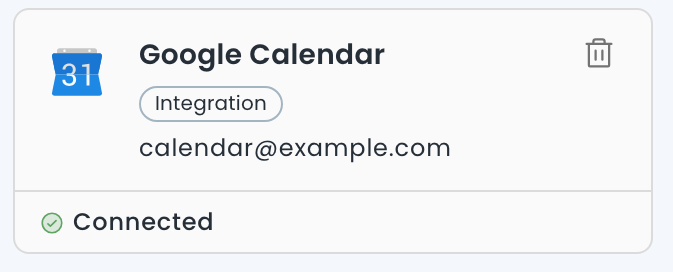
Each organization connects a single calendar: the primary calendar of that Google account. While it's connected, the Google Calendar option in Add integration is disabled.
If the connection link expires (it lasts a few minutes) or is used twice, the platform asks you to try again.
What agents do
You don't need to turn anything on in the agents: all the ones handling conversations from WhatsApp, Telegram or external apps can, when the customer asks:
- Check availability in the calendar, over a range of up to 31 days;
- Book an appointment of up to 8 hours, on a future date.
The platform's internal conversations don't use the calendar.
Appointments are created in the connected calendar. If the customer gives their email, it's saved in the event, but Google doesn't send them an invitation. Agents don't modify or delete events.
In the conversation, What the agent didUser guide shows Checked the calendar availability and Scheduled "…".
It's a good idea for the agent's system instructionsUser guide to say when to offer an appointment, how long it lasts and what details to ask for before booking it.
Disconnect
On the card, the trash icon (Disconnect). Agents can no longer check availability or book appointments; events already created stay in the calendar.