Talking to an agent
How to start a conversation, write, attach files, use the agent's tools and understand its answers.
Starting a conversation
- Click New conversation in the list.
- Choose Internal conversation (the WhatsApp and Telegram options start a conversation with an external contact; see Channels and human support).
- Choose an agent. See all agents opens a search box with every agent you have access to.
- Write your first question, or click one of the conversation starters the agent offers.
The agent is fixed once you send the first message: to talk to another agent, open a new conversation.
If the agent is no longer available
An agent from the catalog stops being available when its publisher withdraws it, or when your organization uninstalls or deactivates it. Its conversations are marked Agent unavailable and, instead of the message box, you see This agent is no longer available. You can read the conversation, but not send messages.
New conversation opens a new conversation so you can choose another agent. If a message was sent just as the agent stopped being available, it is marked Not sent: agent unavailable.
Writing
- Enter sends and Shift + Enter adds a line break.
- A message can be up to 65,000 characters. A counter appears as you get close to the limit.
- Dictate turns your voice into text, up to 5 minutes per recording. It only appears if the agent has the Speech to text built-in function.
Attaching files
Attach files, drag or paste. It only appears if the agent has the Attach files built-in function.
| In an internal conversation | |
|---|---|
| Files per message | Up to 5 |
| Images | JPG, PNG, WEBP, up to 10 MB |
| Documents | PDF, DOCX, XLS, XLSX, TXT, up to 10 MB |
Attached files are sent to the model so it can read them in that conversation. They are not saved in the Knowledge Hub and other agents do not consult them.
Tools
The Tools menu in the message box turns on options for the next messages:
| Tool | What it does | Appears if… |
|---|---|---|
| Web search | The agent can look up current information on the internet | The agent has Web search |
| Certified sources | The agent can consult verified information sources (Cala AI) | The agent has Certified sources |
| Connectors | Choose which of the agent's external tools are used in this conversation | The agent has connectors |
Active tools are shown as chips above the message box and are removed by clicking them. Each web search uses credits.
The answers
Answers can include formatted text, tables, diagrams (with Download SVG and View fullscreen), CSV data (Download CSV), images and figures from the Knowledge Hub documents.
Click an image to enlarge it (View larger image) and download it with Download image. Images from other websites don't load on their own: you see External image from… with the site's name, and they show when you click Show.
What the agent did
Above each answer, a line sums up what the agent did to answer: Took 3 actions, or the action itself if there was only one. While it answers, the line shows live what it is doing (Searching the documents…), and below it the stage is shown: Thinking..., Reviewing sources… while it reads what it found, Generating image... or Generating audio.... Clicking it shows the steps and, for each one, the Query and the Result; for web searches, the Pages consulted.
| Action | When it appears |
|---|---|
| Searched the documents | It consulted the Knowledge Hub |
| Searched the web for "…" / Read a web page | It used web search |
| Searched certified sources | It used certified sources |
| Looked up the data extracted from the documents | It consulted data from smart extraction folders |
| Looked up the audio and video transcripts | It consulted media files |
| Searched the documents for images / Shared images from the documents | It used images from the documents |
| Consulted "…" | It consulted a specialist |
| Used the skill "…", Read "…" from the skill "…", Ran "…" from the skill "…" | It used a skill |
| Checked the calendar availability / Scheduled "…" | It used Google Calendar |
| Saved something to remember | It updated its memory |
| Handed the conversation to a person | It asked for human support (see Channels and human support) |
| Used a tool | It used a connectorAdministration or another tool |
If an action fails, it is marked Failed. Everyone in the conversation sees this line.
Actions on each answer:
| Action | What it does |
|---|---|
| Copy response | Copies the text |
| Generate audio | Reads the answer aloud. Uses credits |
| Translate message | Translates the answer; Show original goes back to the original text |
| View sources | Opens the message sources. Only if the agent consulted any |
If a message is not sent, Retry message tries again.
Message sources
Message Sources shows the information the agent consulted for that answer:
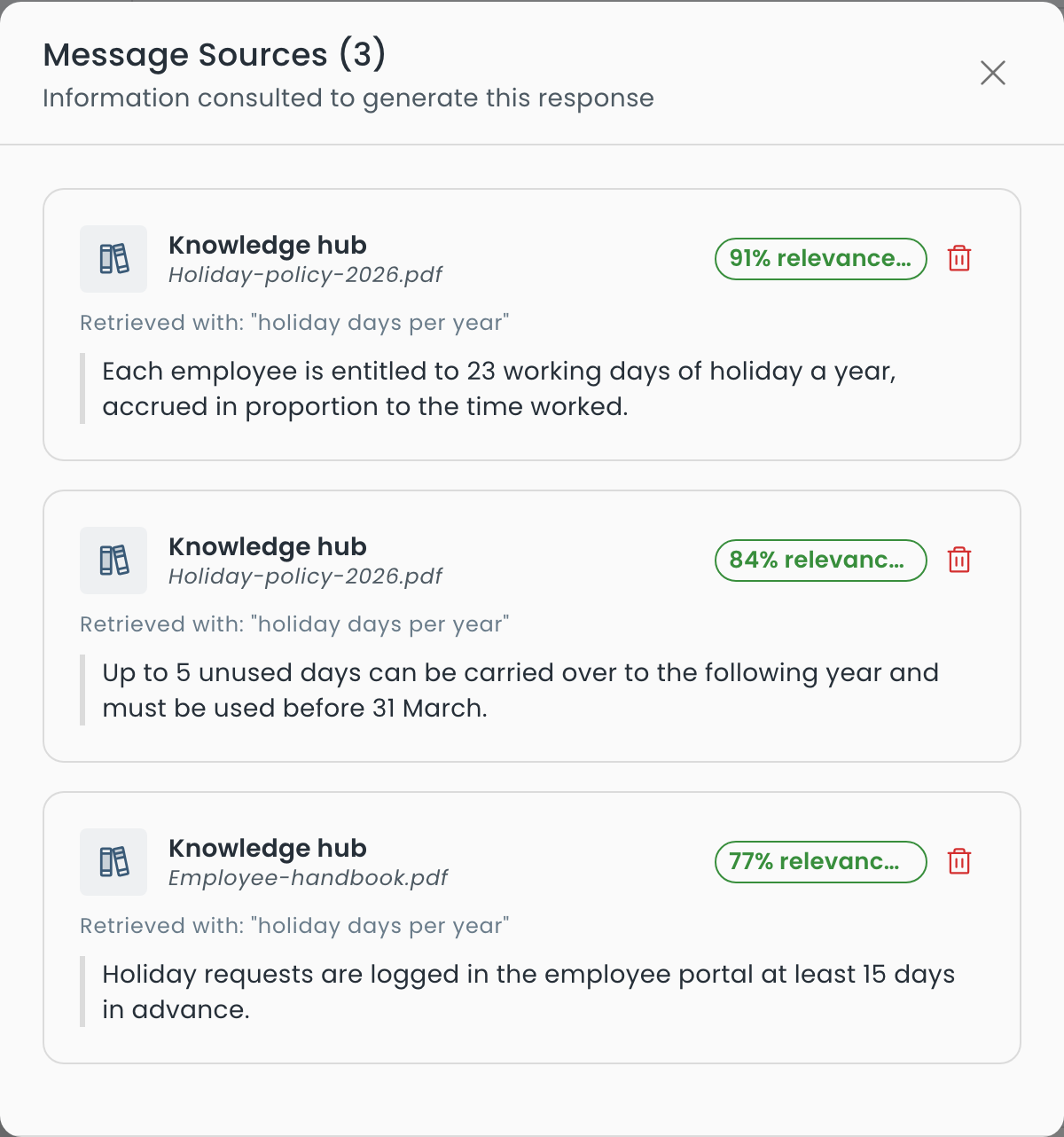
| Type | What it is |
|---|---|
| Knowledge hub / Internal knowledge base | Fragments of documents, with their relevance percentage and the search that found them |
| Web source | Internet pages consulted. They open in a new tab |
| Verified source Cala AI | Certified sources |
| Multimedia resource | Video or audio transcripts |
| Processed documents | Data extracted from documents with Smart Extract |
It is the best way to check that the agent answers with your organization's documents and not with the model's general knowledge.
Delete this fragment removes that fragment from the knowledge, for everyone and every conversation. If it comes from the Knowledge Hub, any agent that consults that document stops using it. It cannot be undone. Use it only to remove incorrect information. The original document does not change.
Delete this fragment only appears with edit permission on the module the source comes from: the Knowledge Hub for Knowledge hub sources, and Studio for the rest.
What the agent remembers
If the agent has memory, it remembers what matters about each person from one conversation to the next. Only in conversations alone with it: in a shared conversation it neither uses nor saves anything.
When it saves something, the answer shows it underneath:
| Mark | What it means |
|---|---|
| Memory updated | It saved something for the next conversations |
| Memory full | It couldn't save it because the memory reached its limit. Delete what's no longer useful and ask again |
| Memory not updated | It tried to save something and couldn't. Ask again later |
What it remembers about you
Each person can see what the agent saved about them, correct it or delete it. You open it in three ways:
- In the header menu, Agent memory.
- In Conversation details, under Capabilities, What it remembers about you.
- By clicking an answer's memory mark.
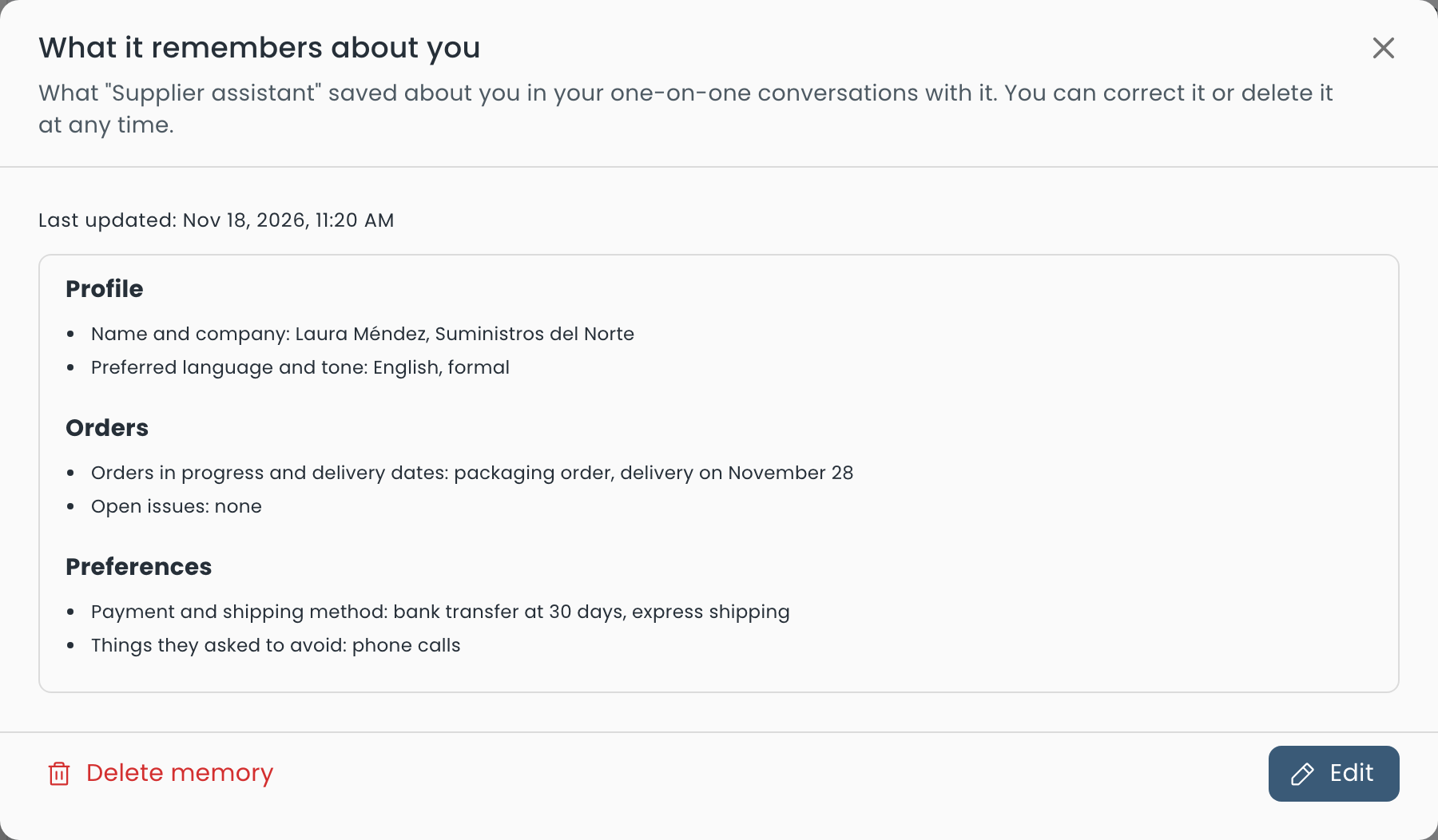
| Action | What it does |
|---|---|
| Edit | Correct the text, up to 8,000 characters. The agent uses the changes in the next conversations |
| Delete memory | The agent forgets everything it saved about that person and starts from scratch. It can't be undone |
While the agent is answering, Edit and Delete memory wait for it to finish, so nothing it saves in that answer is lost. If the agent saves something new while you're editing, the window tells you and offers Load new version.
To make it forget just one thing, you can also ask it in the conversation.
What the agent remembers about a person isn't visible to anyone else. An administrator can delete it, but not read it. See Who can see and delete memory.
Context window
Each model can take into account a limited amount of conversation. When the conversation uses 80% of that space, an indicator appears in the message box; at 90%, a warning: Context window is almost full.
Past the limit, the model can no longer answer with the whole conversation and the platform says so. At that point it is best to open a new conversation.
Opening a new conversation when you change subject improves the accuracy of the answers and reduces usage.
Credits
Each answer uses the organization's credits, except with the organization's own models. If they run out, after a short grace period the agents stop answering until they are topped up.
Testing an agent
Before opening an agent to more people or connecting it to a channel, it is a good idea to test it here:
| Test | Expected behavior |
|---|---|
| Question covered by the documentation | It answers correctly and View sources shows the expected documents |
| Question not covered | It says it does not have that information, without making it up |
| Question outside its role | It redirects as its instructions say |
| Ambiguous question | It asks for clarification |
| Question for a specialist | What the agent did shows Consulted "…" |