Signing in to the platform
This page explains how to get into ConsulPoint for the first time and day to day: signing in, creating an organization, accepting an invitation and resetting your password.
Sign in
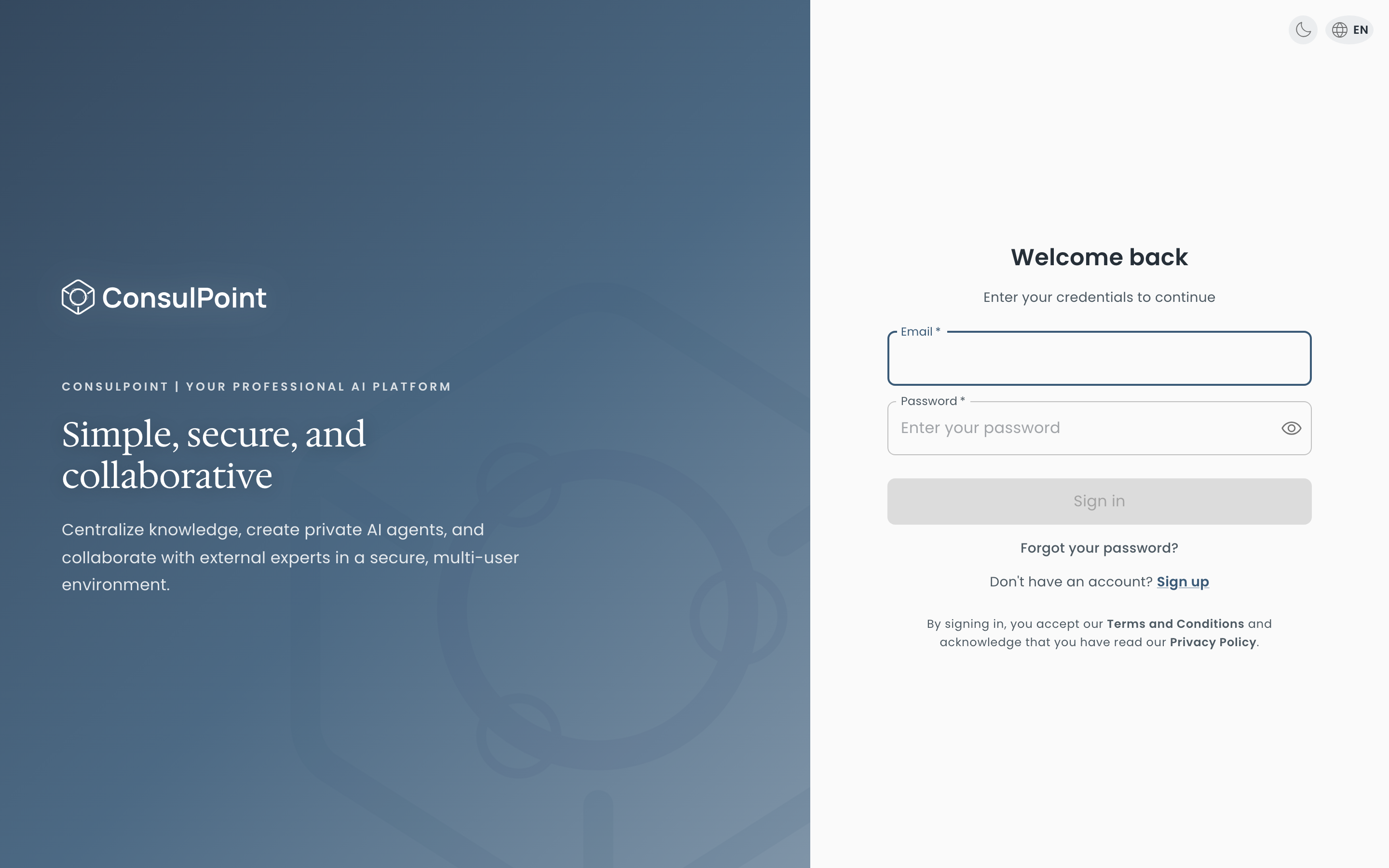
- Enter your Email and Password. The eye icon in the field shows or hides the password.
- Click Sign in.
At the top right you can change the theme (light or dark) and the language (Spanish or English) before signing in. The choice is saved in that browser.
If the details are wrong, Invalid credentials. Check your email and password. appears. Only email and password are used to sign in: there is no sign-in with Google or Microsoft.
Choose an organization
People who belong to a single organization go straight to Home.
People who belong to several see Hello again! with the list of their organizations, and choose which one to work in. That organization becomes their favorite, and next time they go straight into it. Inactive organizations appear disabled.
After that, you switch organization or workspace from the selector in the top bar, and the star changes the favorite. See WorkspacesAdministration.
Create an organization
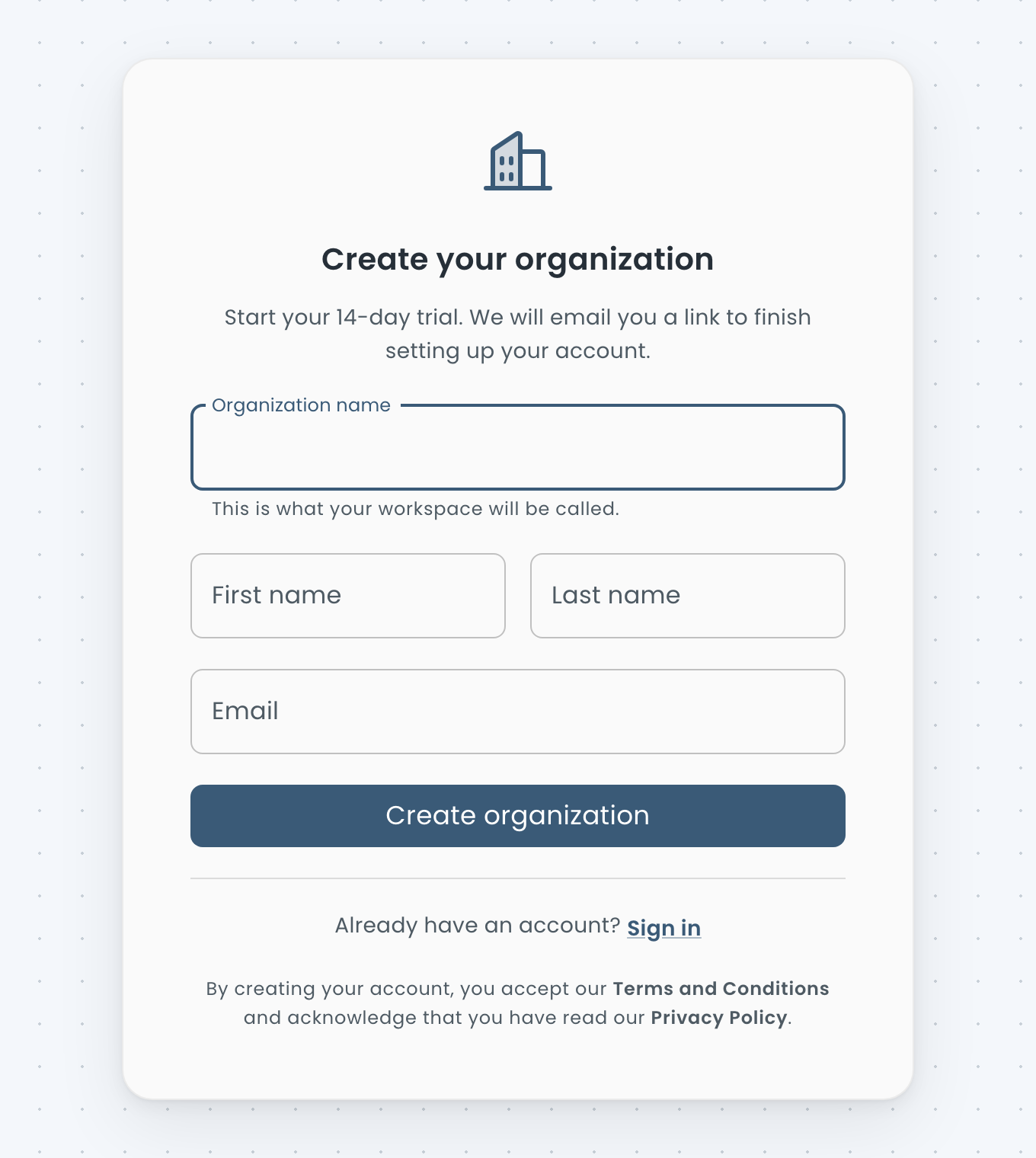
When sign-up is open, the sign-in screen shows Don't have an account? Sign up. When it is closed, Request access appears instead, to ask the ConsulPoint team for an account.
-
Click Sign up.
-
Fill in Create your organization:
Field Description Organization name Between 3 and 64 characters. It is the name the whole team will see First name and Last name Between 2 and 64 characters, letters and spaces only Email The email of the person creating the organization, who will be its administrator -
Click Create organization.
-
Open the email sent to that address and follow the link to create the password.
The organization starts with a trial period. If the email already has an account, This email already has an account. appears: in that case, just sign in.
Accept an invitation
To an organization
When an administrator invites someone from UsersAdministration:
- If the person has no account, they receive an email with a link to create the password.
- If they already have an account in another organization, they don't need to do anything: they receive an informational email and the new organization appears in their list the next time they sign in.
To a workspace
Invitations to a workspaceAdministration arrive by email and expire after 7 days.
- Without an account: the link opens Join the workspace. You create the password and click Accept invitation.
- With an account: the link first asks you to Sign in and then to Select profile, the profile you will use in the workspace. You finish with Accept invitation.
People who are already signed in also receive the Workspace invitation notification, which leads to the same place.
Create the password
The link in the sign-up or invitation email opens Welcome to ConsulPoint, with the email already filled in. Enter the Password, repeat it in Confirm password and click Create account. Then sign in with it.
The password must have:
- At least 8 characters.
- At least one uppercase and one lowercase letter.
- At least one number.
- At least one special character, for example
! @ # $ % & * - _ =.
The list on the screen ticks off each requirement as it is met.
Links in emails expire after a while. If Invitation link expired appears, ask the administrator to resend the invitation or, if the organization was created through sign-up, write to the ConsulPoint team.
Reset the password
- On the sign-in screen, click Forgot your password?.
- Enter your Email and click Send reset link.
- Open the email and follow the link to Reset your password.
- Enter the new password twice, with the same requirements as when creating it, and click Reset password.
The link expires shortly: it is best to use it as soon as it arrives. If it doesn't show up, check the spam folder. A confirmation email arrives when the password is changed.
While signed in, the password change is requested from Your account.
The session
The session renews itself while you use the platform. After a period of inactivity it expires:
- Five minutes before, Your session is about to expire appears, so you can save what you are doing.
- When it expires, Session expired appears and the platform goes back to the sign-in screen.
Open platform tabs stay in step: logging out in one logs out all of them in that browser. Log out is in the user menu and only ends the session in that browser, not on other devices.
Problems signing in
| Message | What to do |
|---|---|
| Invalid credentials… | Check the email and password. If you don't remember it, reset it |
| You don't have permission to access this. | The account exists but has no access. Check with the organization's administrator |
| You don't have any organizations associated with this account. | The account doesn't belong to any active organization. Ask the administrator for an invitation |
| Invitation link expired | Ask for the invitation to be resent. To reset the password, request a new link |
| Too many attempts… | Wait a while before trying again |