Home
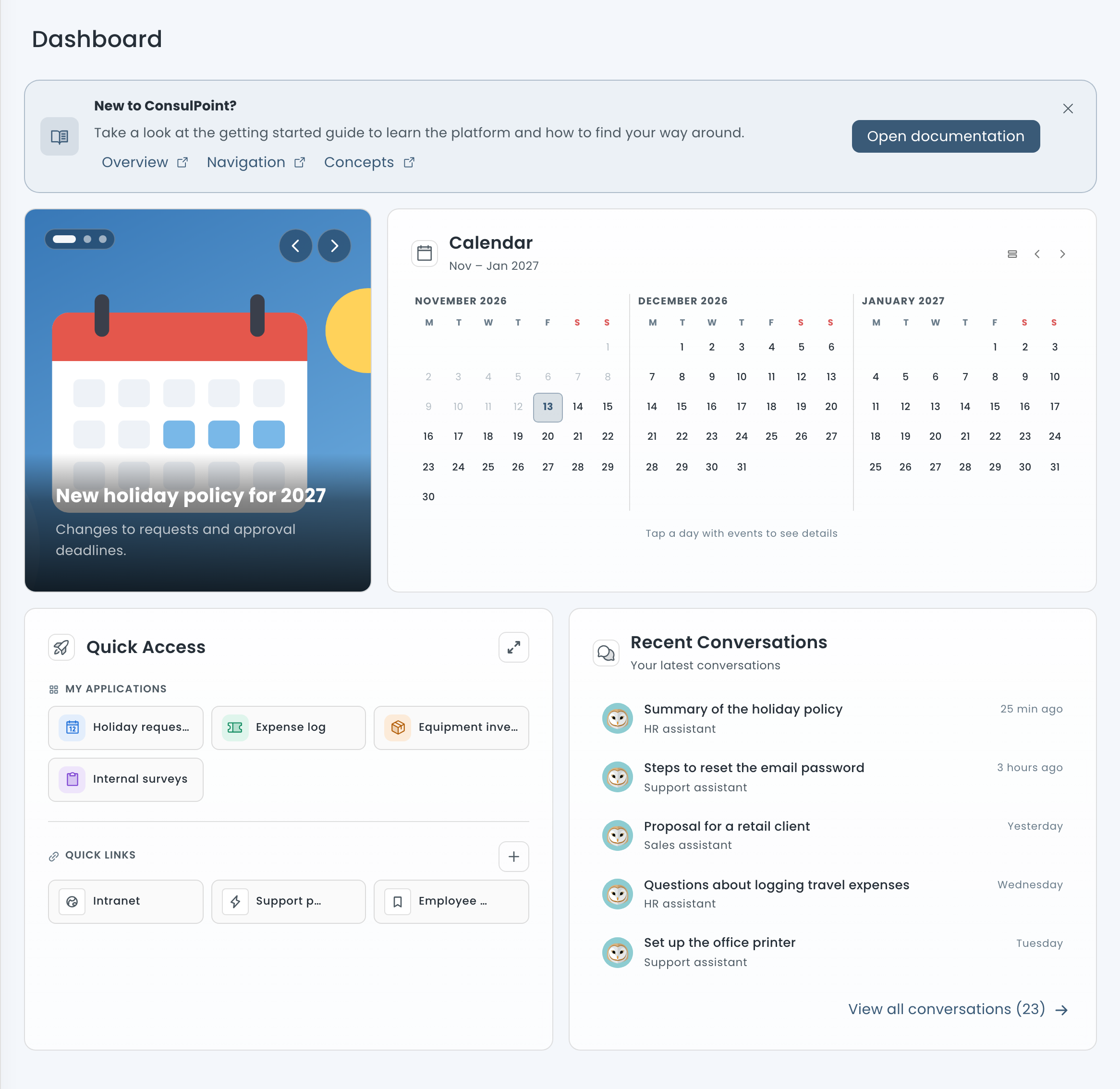
The platform's main screen, titled Dashboard. It brings together the latest articles, a calendar, the apps and links you use every day, and your most recent conversations. It is always available in the sidebar, whatever your role.
What it shows
Each user sees only the blocks for the modules they have access to. The dashboard spreads the visible blocks across the full width, so the layout can vary from one user to another.
| Block | Content | Shown if… |
|---|---|---|
| Featured Article | Carousel with the 3 most recent active articles from Articles & Updates. It moves on by itself every few seconds; clicking an article opens it in full | The user has access to Articles & Updates and there are active articles |
| Calendar | The current month and the next two. The arrows move forward or back a month, and the button next to them switches between Grid view and Linear view | Always |
| Quick Access | The organization's apps (My Applications) and the user's personal links (Quick Links) | The user has access to the apps or to the quick links |
| Recent Conversations | The user's last 5 conversations, with the Agent unavailable or Group badge when relevant. Clicking one opens it in Conversations; if there are more, View all conversations takes you to the full list | The user has access to Conversations |
Notices at the top
- New to ConsulPoint? — a card with links to the getting started guide in this documentation (Overview, Navigation, Concepts). Close it with the X and it stops showing for that user in that browser.
- Free trial — in organizations on a trial, a card shows how many days are left. Administrators also see a button that takes them to the available subscriptions.
Quick Access
The block's title changes with what it contains: Quick Access when it includes both apps and quick links, or My Applications or Quick Links when there is only one of the two.
It shows up to 6 apps and 6 quick links. The expand button, in the corner of the block, opens Apps & Shortcuts with every item, split into tabs and with a search box.
My Applications
These are the integrated apps installed in the organization. Clicking one opens it in a window over Home, without leaving the screen.
Quick links
Links to sites you visit often, such as the intranet or a support portal. They open in a new browser tab.
Quick links are personal: each user sees only their own. They are also saved separately in the organization and in each workspace.
To create one, if your role allows it:
-
Click + next to Quick Links, or Add shortcut if there are none yet.
-
Fill in the New shortcut window:
Field Description Name Between 2 and 100 characters Link Full web address, for example https://intranet.example.comChoose an icon / Upload a custom image One of the available icons or your own image -
Click Save.
Each shortcut's menu lets you Edit and Delete it.
A deleted shortcut cannot be recovered; you have to create it again.
Help center
Once the New to ConsulPoint? card is closed, the Help center block appears at the bottom of the dashboard in its place. It contains guides from this documentation for each module the user has access to, and the View all documentation link.

When a block is empty
If there is no content, each block says so, for example No shortcuts yet or No recent conversations. If a block cannot be loaded, it shows a message and a button to try again.