Articles & Updates
A space to publish announcements, updates and articles for the whole organization: a new policy, the training calendar, a team announcement. The most recent articles also appear in the Home carousel.
Who can do what
With the default roles:
| Role | Can |
|---|---|
| Administrator | Read, publish, edit and delete their articles |
| User | Read, publish and edit their articles. Not delete |
| Collaborator | Read only |
An article can only be edited or deleted by the people who wrote it.
Reading articles
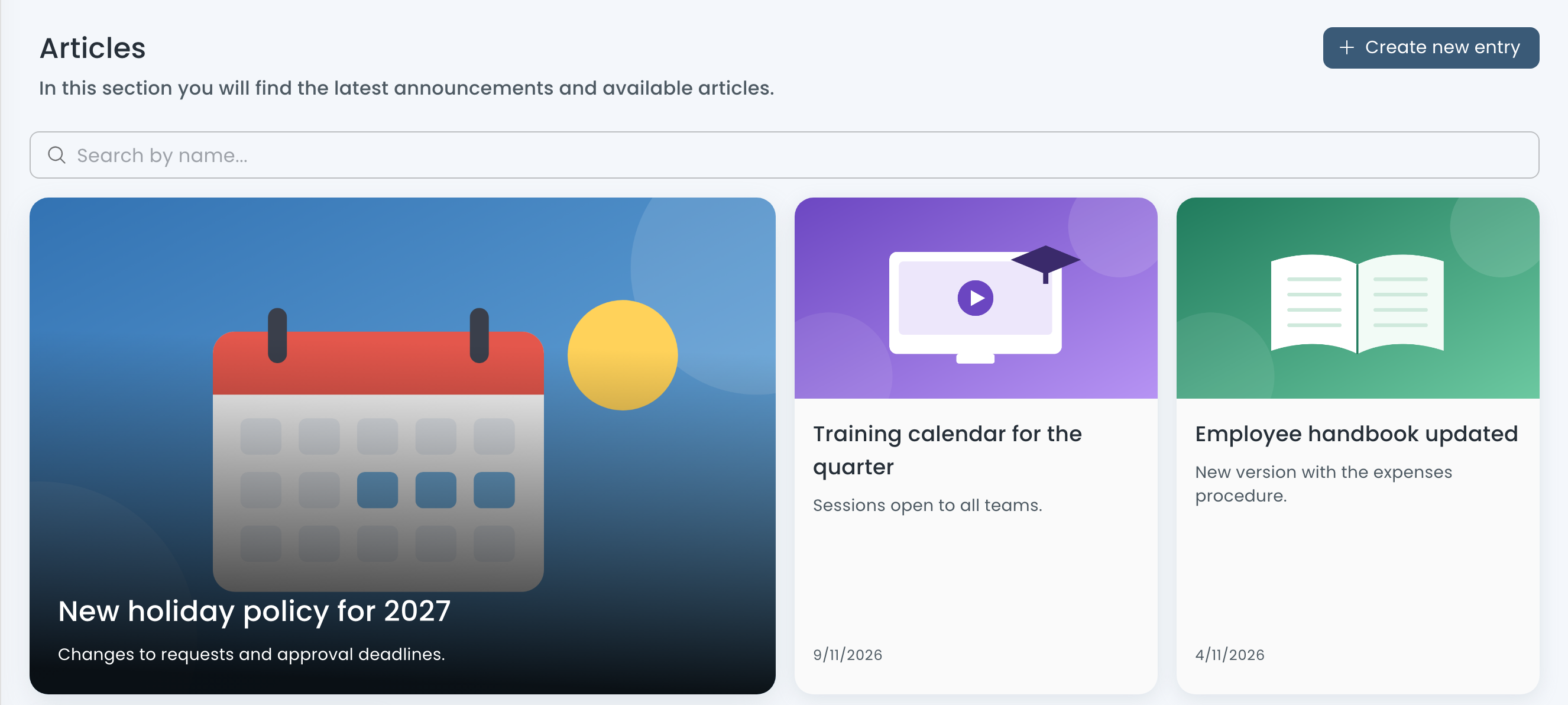
The list shows the most recent article first, in large format, and then the rest in cards with their image, title, description and date. Search by name... filters by title within the page you are viewing.
When you open an article you see the main image, the author, the date (Published on:) and the full content.
Publishing an article
-
Click Create new entry.
-
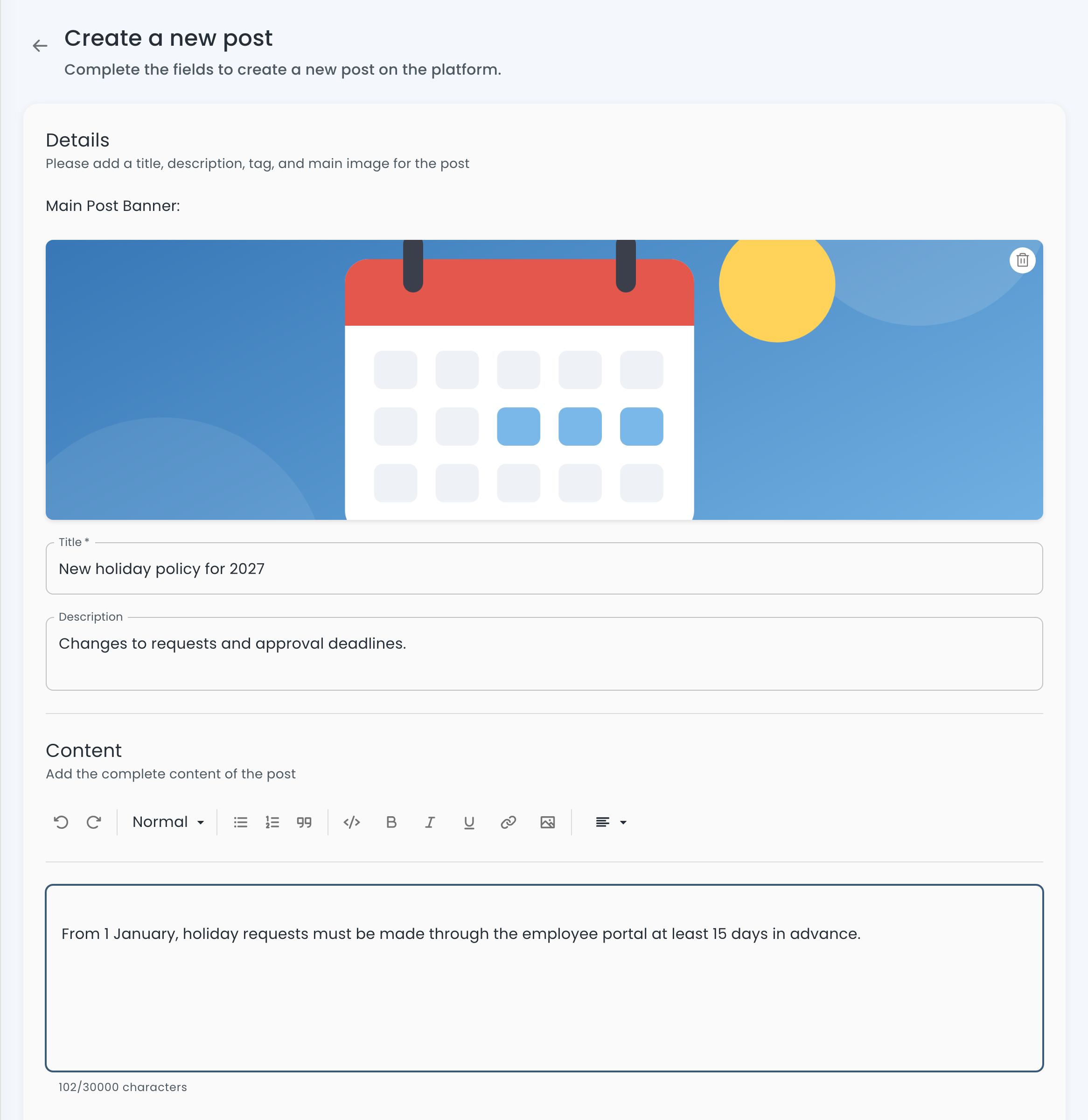
Fill in the fields:
Field Description Title Required, up to 100 characters. It cannot repeat another article's title Description Optional, up to 80 characters. It is the summary shown in the cards and in the Home carousel Main Post Banner Optional. JPG, PNG or GIF image, up to 5 MB. It is shown in the card and at the top of the article Content Required, up to 30,000 characters -
Click Create post. The article is published right away and everyone with access can see it.
There are no drafts or scheduling: creating the article publishes it. Publishing it does not send notices to anyone either; if it matters, it is best to announce it through another channel.
The content editor
The content supports headings, bold, italics, underline, strikethrough, lists, quotes, code, links, paragraph alignment and images. Images inserted in the text can be up to 1 MB each.
Editing and deleting
From the open article:
- Edit opens the form with the current content. Update Post saves the changes. The main image can be changed, removed or, before saving, reverted to the original.
- Delete removes the article.
A deleted article cannot be recovered.
On Home
The Featured Article carousel on Home shows the 3 most recent articles, with their image, title and description. Clicking one opens it in full.
In workspaces
Each workspaceAdministration has its own articles: the organization's articles do not appear inside a workspace, nor the other way round. People who belong only to a workspace, without being part of the organization, can read its articles but not publish them.
Good practices
- A clear title and a description that says in one sentence what it is about: that is what shows on Home.
- A landscape main image that still reads well when cropped in the card.
- For documentation the agents need to consult, use the Knowledge Hub instead: agents do not read articles.