Notifications
The platform notifies each person about what happens in the organization that concerns them: a document ready, a new message in a conversation, an invitation, running out of credits… Notifications arrive at the bell in the top bar and, if allowed, also as browser notifications.
The bell
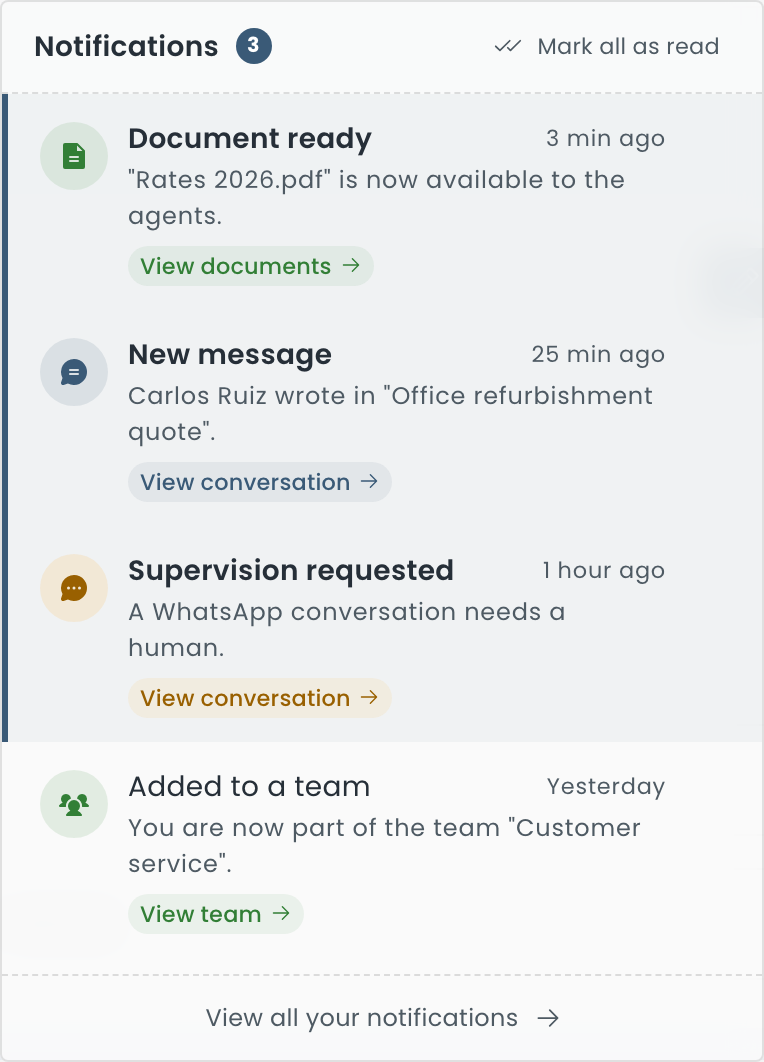
The number on the bell shows how many are unread. Clicking it opens the 10 most recent:
- Clicking a notification marks it as read and takes you to what it is about (the conversation, the folder, the subscription…).
- The check mark on an unread notification marks it as read without opening it. Mark all as read marks them all.
- The trash icon deletes a notification. It only appears on read ones.
- View all your notifications opens the full page.
Notifications page
All notifications, grouped into Today, Yesterday, This week and Older, with the total, how many are still unread and Mark all as read. 25 are shown per page, which can be increased to 50.
Browser notifications
The first time, the panel offers Turn on browser notifications to get alerts even when this tab is not open. When you click Turn on, the browser asks for permission. From then on:
- With the platform open, each notification also appears for a few seconds in a corner of the screen.
- With the platform in the background, it arrives as a system notification.
If the browser has them blocked, allow them from the lock icon in the address bar. The permission is per browser: it is turned on separately on each computer, and after logging out they stop arriving in that browser.
What the platform notifies about
Each person only receives the notifications that apply to them based on what they do or manage.
| Notification | When it arrives |
|---|---|
| Processing documents / Document ready | A folder's documents are being prepared for the agents, or one is now available. See Agent knowledge |
| PDF converted / The PDF could not be converted | A PDF conversion has finished |
| Emails processed | The Smart Inbox checked emails and saved their files |
| New message | Someone wrote in a shared conversation |
| Supervision requested / Conversation unattended | A channel conversation needs a human, or has gone unanswered for a while. See Channels and human support |
| New version available | There is an update for an installed app or agent. See Integrations catalogAdministration |
| Agent updated | For administrators: a catalog agent was updated to a new version on its own. See Catalog agents |
| Connector installed | Someone installed a connector in the organization |
| Connection about to expire | A channel connection, such as WhatsApp, needs to be renewed |
| Invitation sent / Invitation accepted | For administrators: someone was invited to the organization, or has joined it |
| Workspace invitation / New workspace member | Invitations to workspacesAdministration |
| Added to a team | You are now part of a teamAdministration |
| Credits exhausted | The organization ran out of credits. See Credits and limitsAdministration |
| Your subscription expires soon / Subscription expired / Subscription request approved or rejected | SubscriptionAdministration notifications |
Some notifications, such as invitations, password changes, running out of credits, unattended conversations or subscription expiry, also arrive by email.
Notifications cannot be configured or turned off by type. Browser notifications can be blocked from the browser itself.