Connectors
A connector gives agents access to an external tool during a conversation, for example to look up or record data in another service. It isn't the same as an integration: an integration connects a channel through which conversations arrive; a connector extends what the agent can do within them.
Install a connector
Connectors aren't created by hand: they're installed from the Integrations catalog, in the Connectors tab. Once installed, the connector is available to the whole organization.
ConsulPoint can also activate a connector for the organization. Those appear as Assigned to your organization and can't be uninstalled from the catalog.
The subscription sets the maximum number of connectors for the organization. See Credits and limits.
Configure and authorize
Installed connectors appear in Settings → Connectors, along with the integrations, labeled Connector.
- Configure opens Connector configuration, with the technical details that connector asks for (address, headers, variables or arguments). It's only needed if the connector's provider says so. Saving overwrites the organization's previous configuration.
- Some connectors ask you to authorize an account in the external service with Authorize with OAuth. In those cases, each person authorizes their own account, and can Reconnect or Disconnect later.
Use a connector in an agent
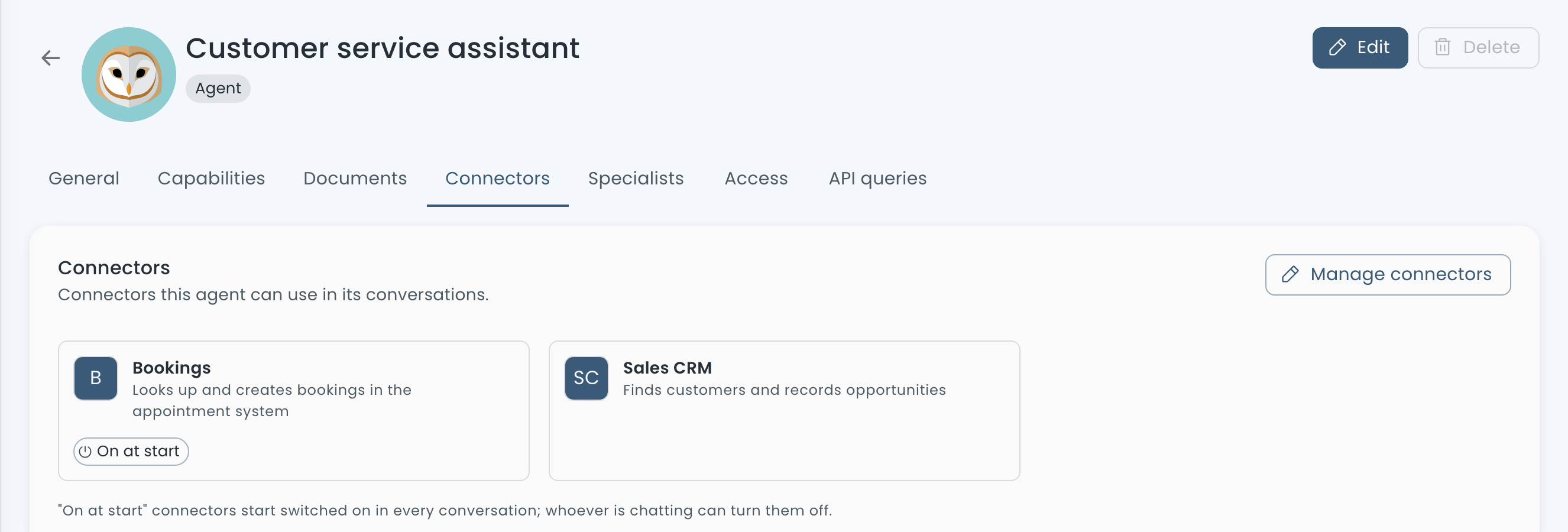
In the agent's details, the Connectors tab shows the ones it can use in its conversations. Only administrators can change them, with Manage connectors.
For each connector you choose whether it's On at start: if it is, it starts switched on in every conversation, and the person chatting can turn it off. See AgentsUser guide.
Uninstall
From the catalog, the connector will no longer be available to your organization, and it can be installed again later. Agents that had it show it as Unavailable and remove it when saved.