Agents
An agent talks with people: in Conversations, in a connected channel such as WhatsApp, or through the API. It answers using its instructions, the documents it has access to and, if it has any, by consulting its specialists.
To create one, see Create an agent. To install a ready-made one, see Catalog agents.
Use cases: customer service, support, internal documentation lookup, assistance for a specific team.
An agent's detail
You open it from the Studio list with View detail. In the header, Edit opens the form, and the more actions menu has Delete (see below).
| Tab | Contents |
|---|---|
| General | Basic information, behavior and personalization |
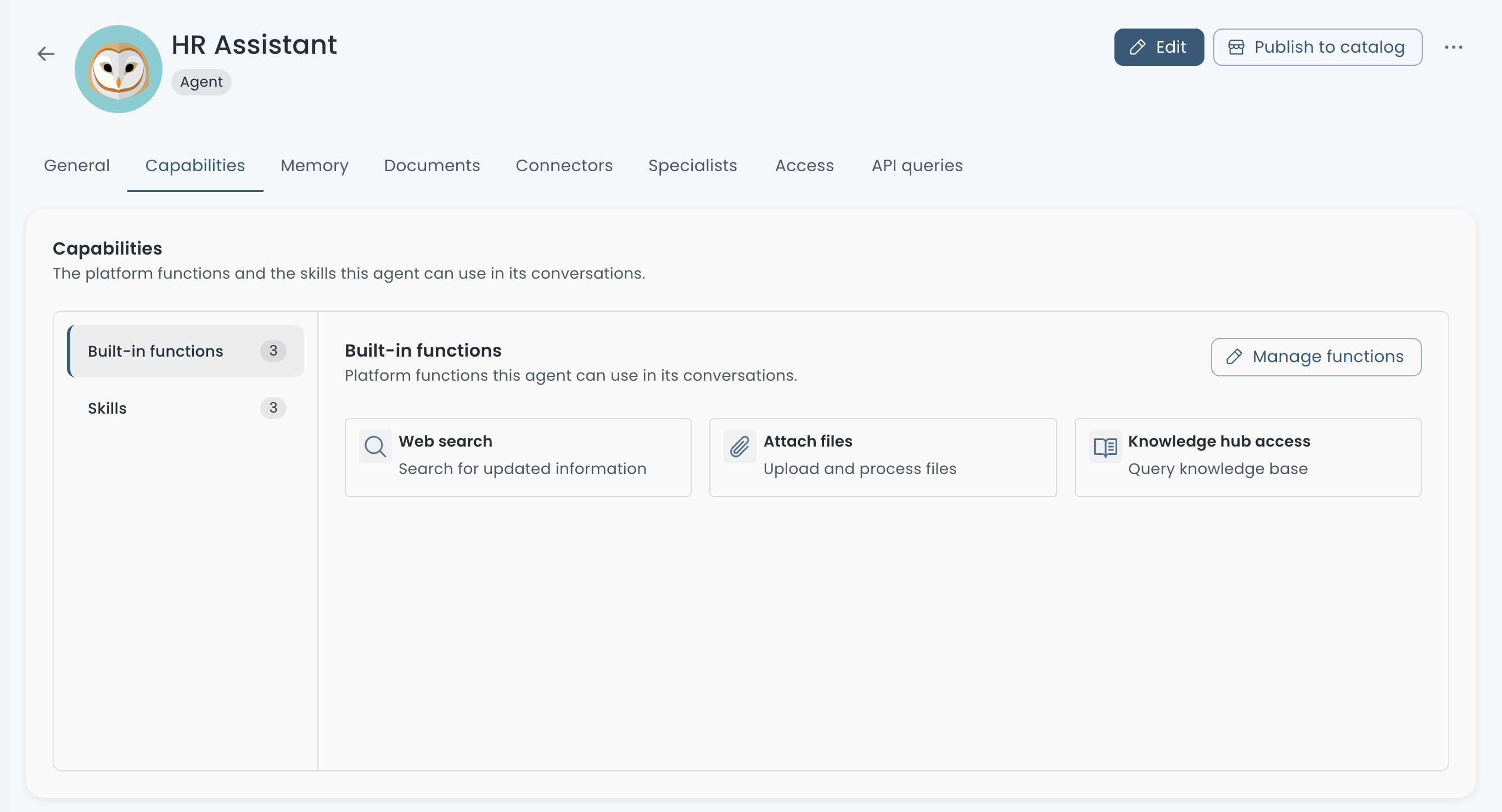
| Capabilities | What the agent can do: its built-in functions and its skills. See below |
| Memory | Whether it remembers what matters about each person across conversations, and what it should remember. See Agent memory |
| Documents | The agent's own documents and their preparation status |
| Connectors | External tools the agent can use. See below |
| Specialists | The specialists it can consult. See Specialists |
| Access | Who can use the agent and at what level |
| API queries | History of the queries made to the agent with an API keyAdministration, with filters by status and date, and the detail of each one |
Specialists have fewer tabs: General, Capabilities, Documents and Access.
Capabilities
Brings together in one place what the agent can do:
- Built-in functions: the platform functions turned on for the agent, such as Web search or Attach files. Memory doesn't appear here: it has its own tab. You change them with Manage functions (or Enable functions, if it has none), with permission to edit Studio. The full list is in Create an agent.
- Skills: the procedures the agent applies when it needs them. You assign them with Manage skills. See Skills.
Documents
The documents uploaded when the agent was created, or with Add document. Each one shows whether it's Vectorized (ready for the agent to read), Not vectorized or Processing, and you can prepare it again or remove it.
These documents belong to the agent only. Documents shared between several agents are managed in the Knowledge Hub.
Connectors
External tools the agent can use during a conversation, connected by the organization. Manage connectors is reserved for administrators. For each connector you set whether it's On at start of each conversation.
Access
| Option | Who uses it |
|---|---|
| Only me | Only the person who created it, not even administrators |
| Whole organization | Everyone uses it; administrators edit it |
| Specific people and roles | Only the people you add, with their level: Can use, Can edit or Can manage |
Anyone who can open the agent sees its access. Only administrators change it with Edit access, and only the person who created the agent can switch it to Only me.
People only see, in the Studio and in Conversations, the agents they have access to.
Edit
Edit opens the form with the current configuration, except the type, which can't be changed. It requires edit permission on the Studio and, on the agent, the Can edit level or higher.
Delete
A deleted agent can't be recovered. Its own documents and its image are deleted too.
- You can't delete an agent that already has conversations: the button appears disabled and shows how many it has.
- Nor one published in the catalog, until it's withdrawn. See Delete a published agent.
- If the agent has documents or specialists assigned, you have to type its name to confirm.
- With the default roles, only administrators can delete agents.
Test an agent
The Studio doesn't have its own test area: agents are tested in Conversations.
- Ask the most common real questions.
- Check the sources of each answer to make sure it uses the right documents.
- Also test what it must not do, to see that it respects its limits.