Publish agents to the catalog
A distributor is an organization that manages other ConsulPoint organizations, its clients. It can build an agent once and publish it to the catalog so those organizations install it ready to use, without seeing its instructions or documents. When it improves the agent, it publishes a new version and it reaches all of them.
ConsulPoint sets up which organizations are distributors. In the platform, distributors have Distributor Panel in the user menu.
To see how each organization receives it, see Catalog agents.
What gets published
| Included | Not included |
|---|---|
| The agent: instructions, model, temperature, tone, conversation starters, built-in functions and what to remember with memory | Connectors: each organization will have to connect them |
| Its specialists and the micro-agents it uses | Shared Knowledge Hub folders |
| The assigned skills | Permissions and workspaces |
| The data schemas they use | Conversations |
| The own documents of the agent and its specialists | What the agent remembers about each person |
| The agent's image |
Organizations that install it can use it, but they don't see its instructions, the content of its documents or that of its skills.
Requirements and limits
| Limit | |
|---|---|
| Levels of specialists | Up to 10 |
| Agents and specialists | Up to 30 |
| Agents, micro-agents, skills and schemas in total | Up to 100 |
| Documents | Up to 50, each up to 25 MB and 200 MB in total |
- Every agent must use a platform model: you can't publish with one of the organization's own modelsAdministration.
- The names of specialists, skills and schemas can't repeat within the agent.
- A micro-agent can't be published on its own.
- You can't publish an agent that contains agents or skills installed from the catalog.
Credits
When you publish, the agent's documents are prepared so organizations can look them up, and that uses the distributor's credits. In later versions only the documents that changed are charged. If there aren't enough credits, nothing is published and nothing is charged.
Publish
- In the agent's detail, click Publish to catalog.
- Pick Who can install it?:
- All your organizations, including the ones added later.
- Only some organizations, chosen from the list (up to 200).
- Pick How do improvements reach them?:
- With notice: each organization decides when to update.
- Automatic: they're applied on their own in every organization.
- Click Publish.
Publishing can take a few minutes. A tray at the bottom right shows the progress and, when it's done, Version … published. If the agent uses connectors or shared folders, the tray says which ones organizations will have to connect or aren't included. If something fails, See why explains it.
The distributor keeps using its original agent; organizations receive a copy.
The Catalog publication card
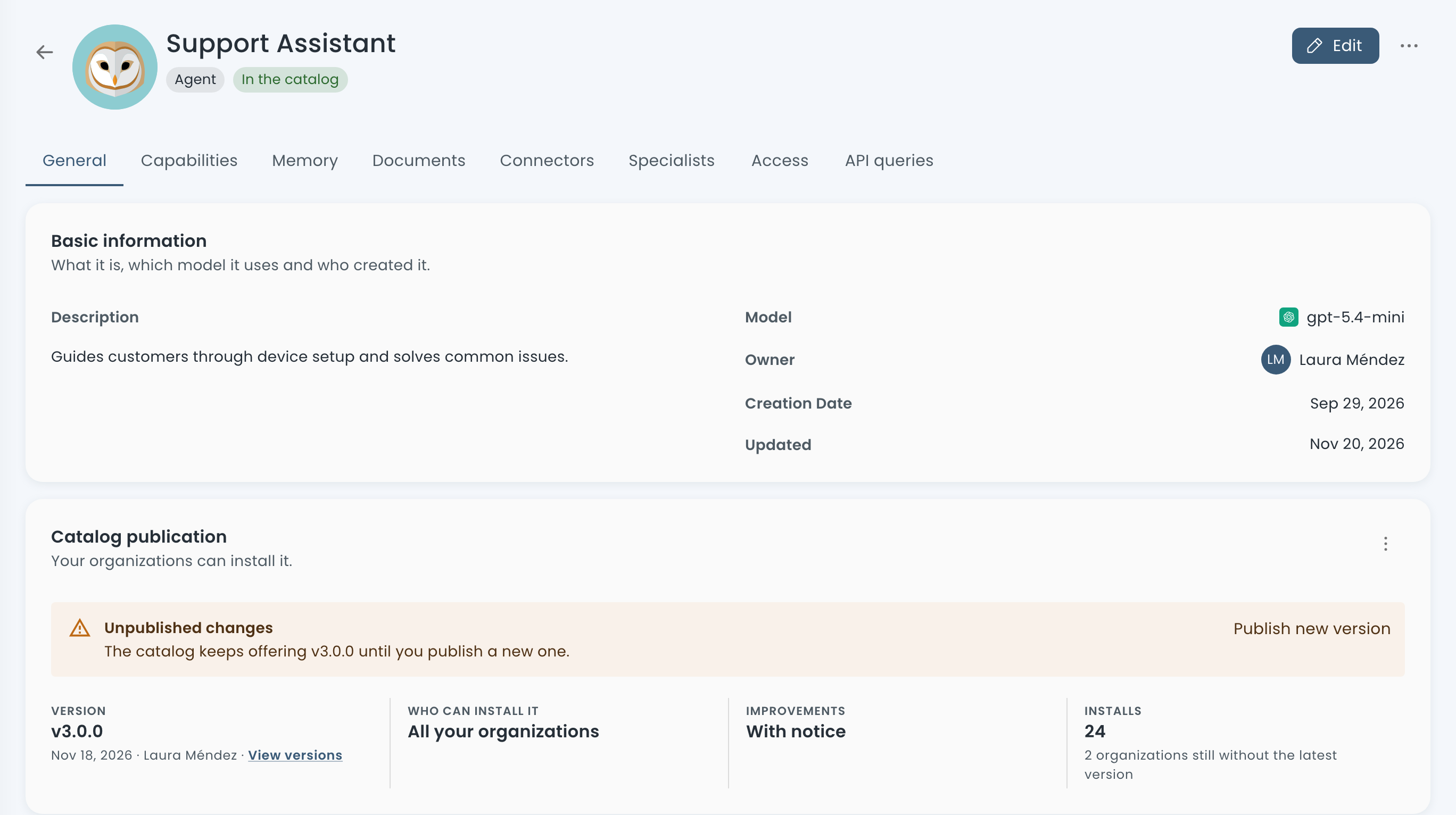
Once published, the agent's General tab has the Catalog publication card, and the header shows its state:
| State | Meaning |
|---|---|
| In the catalog | The distributor's organizations can install it |
| In review | You asked for every organization to be able to install it. While it's reviewed, only the distributor's can |
| Public | Every ConsulPoint organization can find and install it |
| Not approved | Making it public wasn't approved. The distributor's organizations can still install it. The card shows the Reason |
| Withdrawn | It can't be installed anymore. Depending on how it was withdrawn, it keeps working where it was installed or it was turned off |
The card shows the published Version (for example, v2.0.0) and its date, Who can install it, how Improvements arrive and how many organizations have it installed, including those still without the latest version.
Publish a new version
Changes you make to the agent don't reach organizations on their own. When there are changes, the card says Unpublished changes: the catalog keeps offering the previous version until you click Publish new version.
If nothing changed, no new version is created and nothing is charged.
Each organization receives the version according to how improvements arrive:
- With notice: their administrators get New version available and apply it when they want.
- Automatic: it's applied on its own and they get Agent updated.
If an automatic update fails in some organization (for example, because it exceeds a limit of its subscription), the card says The update failed for … organizations. Retry updates tries again.
Published versions
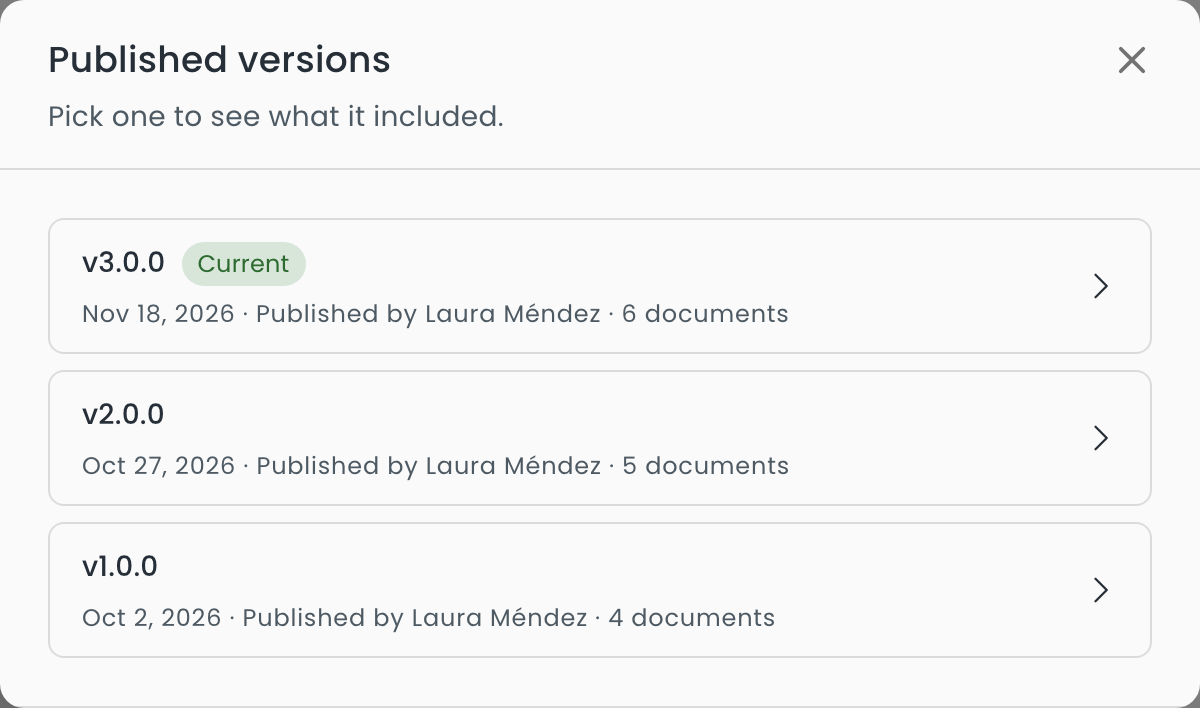
View versions, under the version on the card or in its menu, opens Published versions: every version, newest first, with its date, who published it and how many documents it had. Current marks the one the catalog offers; if the agent is withdrawn, that mark says Latest published. Pick a version to see what it included.
More actions
In the card's menu:
| Action | What it does |
|---|---|
| Configure | Change who can install it and how improvements arrive. It applies right away, without publishing a new version. The change to improvements applies from the next version |
| Make it public | Ask for every ConsulPoint organization to be able to install it. ConsulPoint reviews it; meanwhile it stays In review and you get a notice when the review is done |
| View versions | See Published versions |
| Withdraw from the catalog | No organization will be able to install it from then on. See below |
| Delete from catalog | Deletes the publication and leaves the agent in Studio. See below |
If an option is disabled, the reason is shown under it. Once the agent is withdrawn, the menu only offers View versions and Delete from catalog.
Withdraw and reactivate
When you withdraw an agent that's already installed, you choose what happens to those installs:
| Option | What happens |
|---|---|
| Keep it working | Organizations keep using it, but they get no new versions |
| Turn it off | It stops answering in those organizations |
Withdrawing also cancels a request to make it public. To offer it again, Reactivate in the catalog: organizations can install it again, and those left on an earlier version receive the latest according to how improvements arrive.
Delete from catalog
Delete from catalog deletes the publication with its version history and its documents. It can't be undone. The agent stays in Studio and can be published again.
You confirm by typing the agent's name. It can only be deleted if no organization has it installed: while one does, the option is disabled and says how many. You need delete permission on Studio and, on the agent, the Can manage level.
Delete a published agent
A published agent can't be deleted from Studio: Delete is disabled with the notice It's published in the catalog. Withdraw it from the catalog before deleting it. Once withdrawn it can be deleted, but no new versions can be published anymore.
Best practices
Test the agent in Conversations with real questions before each version: with automatic improvements, a mistake reaches every organization at once.
If the agent needs connectors, say so in its description, so each organization knows what to connect after installing it.