Create an agent
The form for creating an agent or a specialist, field by field. Micro-agents use a different form: see Micro-agents.
Before you start
- Be clear about what the agent is for and who it serves. That's the basis of its instructions.
- If it will answer with documents, upload them first to the Knowledge Hub, one folder per topic.
The steps
- In the Studio, on the Agents tab, click New agent (or New specialist on its tab).
- Configuration: type, basic information, behavior, model, capabilities and personalization.
- Documents and access: the agent's own documents and who can use it.
- Click Create.
When you edit an existing agent, only the Configuration step appears. Documents and access are managed from its detail.
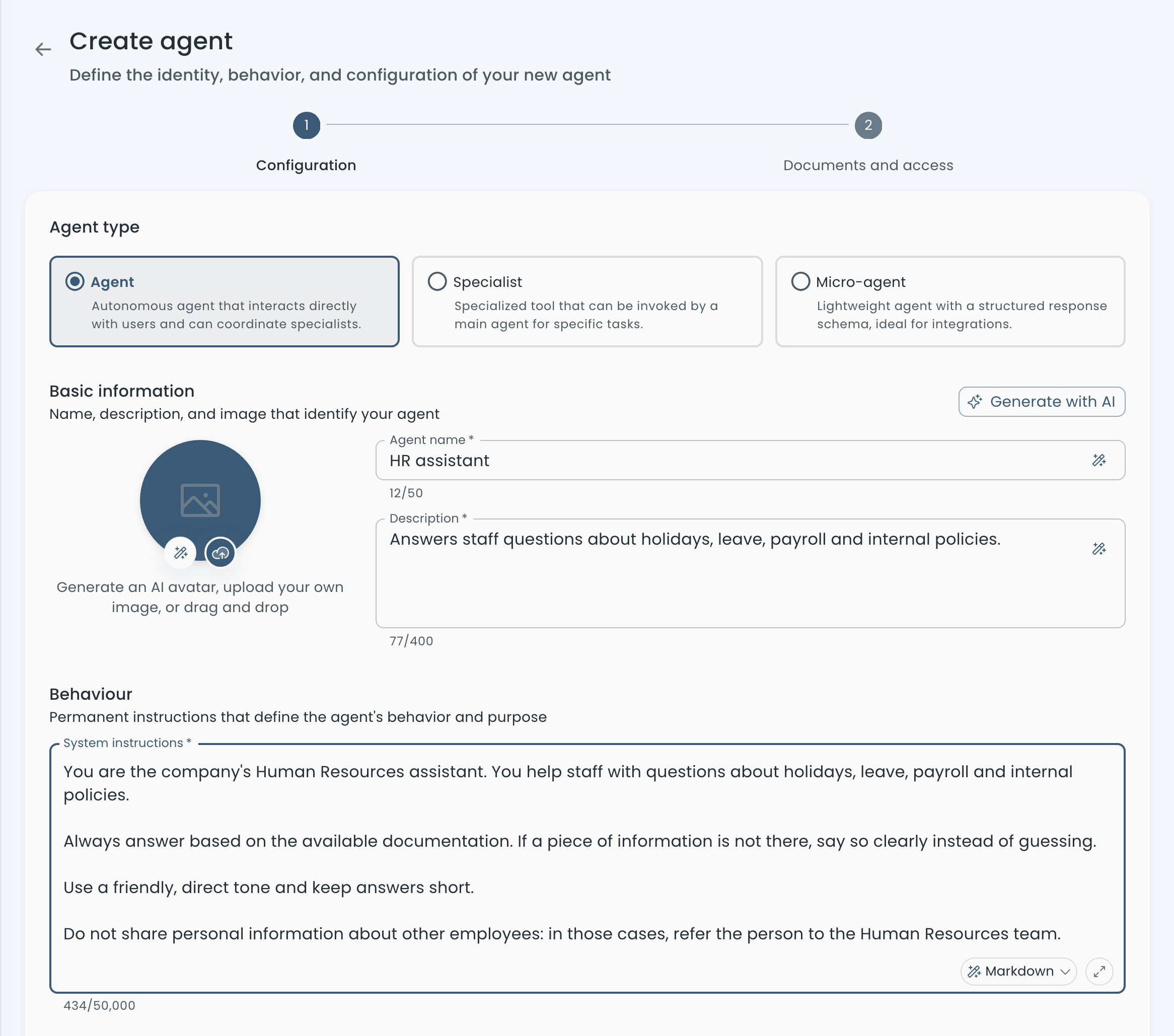
Step 1: Configuration
Agent type
Agent, Specialist or Micro-agent (see The three agent types). Choosing Micro-agent takes you to its own form and keeps the name, description and instructions you've written.
Once the agent is created, its type is fixed. If you chose the wrong one, you have to create a new agent.
Basic information
| Field | Description |
|---|---|
| Image | Agents only. JPG, PNG or WEBP, up to 500 KB. Generate avatar with AI creates one from the name and description |
| Name | Required, between 3 and 50 characters. It can't repeat the name of another agent or micro-agent in the organization; the form checks this as you type |
| Description | Required, up to 400 characters. It's shown in lists and when choosing an agent |
Generate with AI, in the section header, asks for an idea in a few words (Your idea) and suggests the name, description and system instructions. Each field also has its own button to generate or improve it. Everything generated can be edited before you create the agent.
Specialists add the Technical information section (Technical name and Technical description). See Specialists.
Behavior: system instructions
System instructions is required (up to 50,000 characters) and it's the field with the most influence on the quality of the answers. It defines the agent's role, where it gets its information, how it answers and what it must not do.
Recommended structure:
[ROLE]       Who the agent is and who it serves.
[SOURCES]    Where the information comes from and what to do
             when it doesn't have the data.
[STYLE]      Tone, length and format of the answers.
[LIMITS]     What it must not do and when to hand over to a person.
Example:
You are the company's sales assistant. You help customers who ask about our products and services.

Always answer based on the available documentation. If a piece of information isn't there, say so clearly instead of guessing it.

Use a friendly, direct tone. Keep answers short, without unnecessary jargon.

Don't offer special prices, discounts or resolutions to complaints: in those cases, hand over to a person on the sales team.
The AI improve button rewrites the instructions and lets you choose the format: Markdown, XML or JSON.
Model
| Field | Description |
|---|---|
| Provider | Google, OpenAI, Anthropic or Custom (the organization's own models, if the subscription includes them) |
| Model | Required. The provider's recommended model is suggested |
| Temperature | From 0 (Precise) to 1 (Creative). Default: 0. For agents, it's inside Personalization |
How to choose the temperature:
| Value | Recommended use |
|---|---|
| 0 – 0.3 | Customer service, operational data, regulatory compliance |
| 0.4 – 0.7 | General use, internal lookups |
| 0.8 – 1 | Creative writing, brainstorming |
Some newer models adjust their own reasoning and ignore the temperature.
Capabilities
What the agent can do besides talking: the platform's built-in functions and skills. You pick them with Add capability, in a window with a section for each type. The ones you pick appear together, each with its Function or Skill tag, and they're saved when you create the agent.
If you don't have access to skills, you only see the functions, with Add function.
This section only appears when you create the agent: afterwards, you change functions and skills on the agent's Capabilities tab, and memory on its Memory tab.
Built-in functions
| Function | What it allows |
|---|---|
| Memory | Remember what matters about each person across conversations. See Agent memory |
| Knowledge hub access | Look up the documents in the Knowledge Hub. Without it, the agent doesn't appear when sharing folders with it |
| Web search | Search the internet for up-to-date information. In Conversations, the Web search button appears, and the search is only used when it's turned on |
| Text to speech | Read the answers aloud. Uses credits |
| Speech to text | Convert speech to text |
| Attach files | Upload and process files |
| Certified sources | Use verified information sources, promoted by Cala AI. They're turned on in each conversation with the Certified sources button |
Specialists can only have Knowledge hub access. Micro-agents don't have built-in functions.
When you pick Memory, What this agent should remember appears, to say what to keep about each person. It's optional: if left empty, the agent uses a platform template. See What to remember.
An agent without Knowledge hub access doesn't look up documents, even if folders have been prepared for it.
Personalization
Agents only.
- Communication tone: up to 3 of Formal, Informal, Friendly, Technical and Professional. You can't combine Formal with Informal, or Friendly with Technical.
- Conversation starters: up to 5 suggested phrases at the start of a conversation, 3 to 150 characters each.
Step 2: Documents and access
Knowledge documents
Optional. The agent's own documents: PDF, DOCX, ODT or TXT, up to 30 MB per file. You can also add them later, from the agent's Documents tab.
For documents that several agents share, or that another team maintains, it's better to use Knowledge Hub folders.
Access
Who can use the agent:
| Option | Who uses it |
|---|---|
| Only me | Only the person who creates it, not even administrators |
| My organization | Everyone uses it; administrators edit it. This is the default option |
| Custom permissions | Only the people you add, with their level. Agents only, not specialists |
Later, on the agent's Access tab, the same options are called Only me, Whole organization and Specific people and roles.
With Custom permissions you have to add at least one person and choose the level:
| Level | What it allows |
|---|---|
| Can use | Talk with the agent and attach documents to it |
| Can edit | Also change its configuration and share it. Can't delete it |
| Can manage | Everything, including deleting, exporting and importing it |
After you create it
- If it will use Knowledge Hub folders, share them with the agent.
- Assign it specialists, if it needs them.
- Test it in Conversations with real questions, and check in the sources of each answer that it uses the right documents.
Best practices
- One agent per function. An agent "that knows everything" answers worse than several focused ones.
- Specific instructions, with examples of what it should and shouldn't do.
- Low temperature for agents that give data or serve customers.
- Test with the most common questions before opening it up to more people.