Install and manage
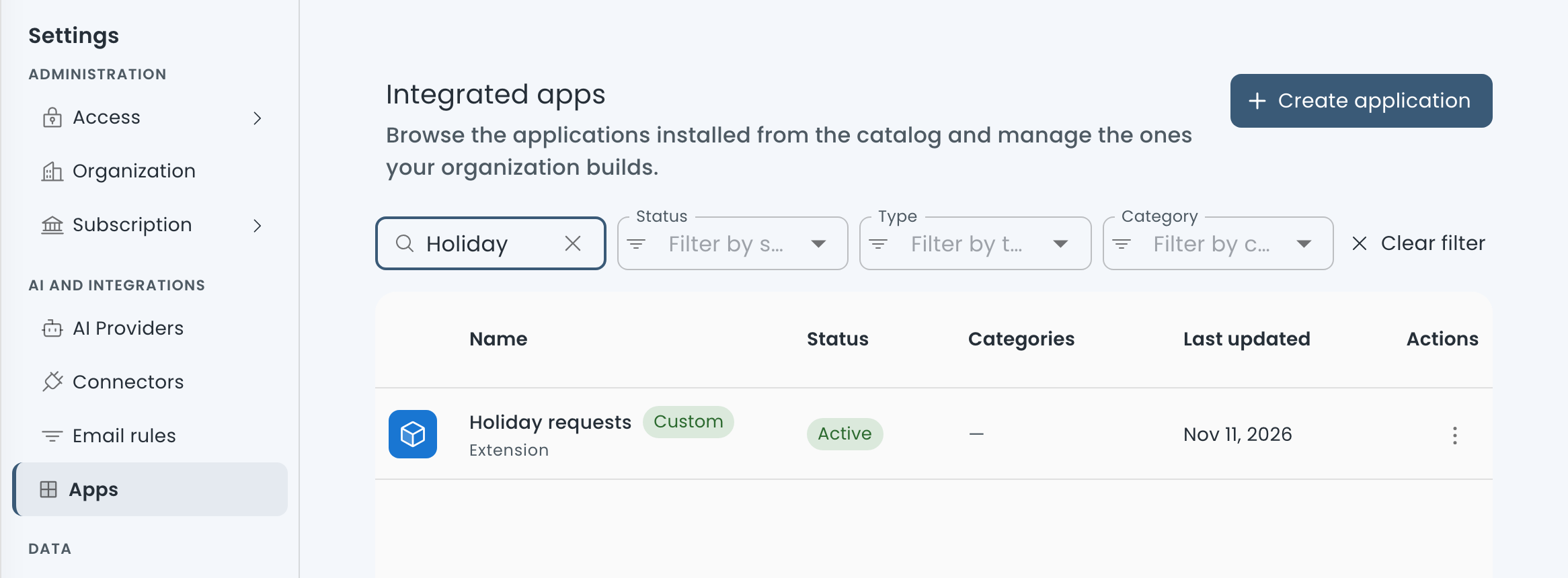
Apps from the Integrations catalog are installed in the organization with one click. Once installed, they're managed from Settings → Apps, along with the custom apps.
This page doesn't require any programming knowledge.
Install
- Open the Integrations catalog and the Applications tab.
- Choose the app and click Install.
- If the app includes resources (folders, micro-agents or data schemas), choose for each one whether to create a new one, use an existing one or skip it.
The app becomes available in the places that match its type. See Where they appearUser guide.
The resources created during installation count toward the organization's subscription limits.
Statuses in the catalog
| Indicator | Meaning |
|---|---|
| Installed | It's already in the organization |
| Update available | There's a more recent version |
| Assigned to your organization | The ConsulPoint team installed it at the organization's request |
| Unavailable | The publisher withdrew it from the catalog |
Update
In the Installed tab, click Update. The update brings the new version along with its permissions and data models.
| What happens to | When updating |
|---|---|
| Saved data | It's kept |
| Permissions | They're replaced by those of the new version |
| Data models | New ones are added; existing ones don't lose fields |
| Name and icon | They're updated to those of the new version |
Review the new version's permissions: they may differ from the ones accepted at installation.
Uninstall
In Installed, open the app's ⋯ menu and click Uninstall. The confirmation lets you also delete the resources the app created; whatever you leave unchecked stays in the organization.
| What happens to | When uninstalling |
|---|---|
| Data saved by the app | It's deleted and isn't recovered on reinstall |
| Included resources | Kept or deleted, as you choose |
| Recorded activity | It's kept, unless you delete it in the same step |
Uninstalling permanently deletes the records the app has saved. Export them first if you'll need them.
Review an app
In Settings → Apps, each app shows its origin (Installed or Custom) and these tabs:
| Tab | Content |
|---|---|
| General | Description, type, status and, if installed, the installed version and the catalog version |
| Permissions | Resources it accesses and with which operations |
| Models | Collections where it stores its records |
| Versions | Published versions and which one is in use |
| Preview | The app running |
| Activity | Who did what and when within the app |
In an Installed app, permissions, models and versions are read-only: they're defined by the publisher. In a Custom app you can change them. See PublishDevelopers.
App permissions
Permissions state what the app can access, not who can use it.
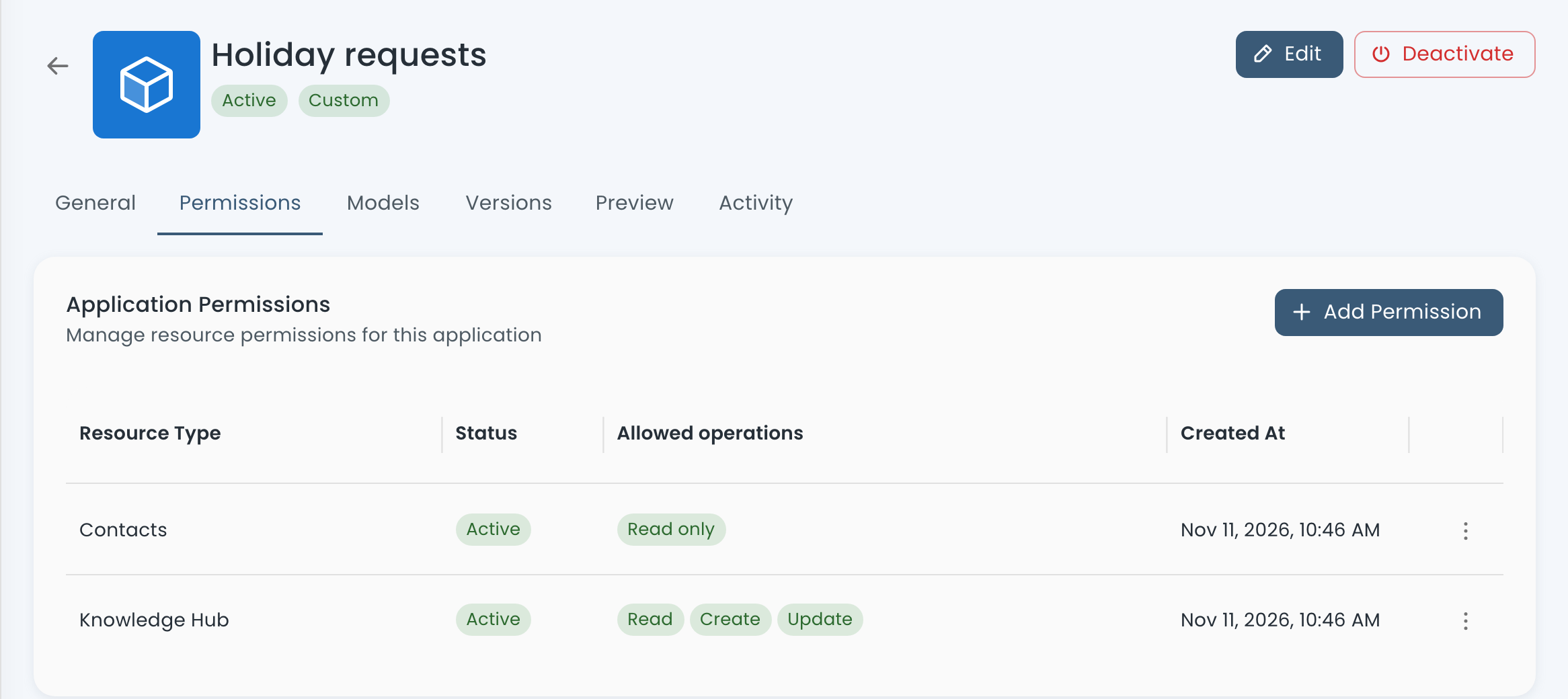
- The app never does more than the role of the person using it allows, except in Contacts, where the app's permission is enough.
- Contacts and Users are always read-only.
- A permission change can take up to 5 minutes to apply.
Withdrawn apps
| Situation | Effect |
|---|---|
| Withdrawn from the catalog | It stays installed and working; it won't receive updates |
| Withdrawn and deactivated | It can no longer be opened. It can be uninstalled from Installed |
Best practices
Review the permissions an app requests and check that they match what it claims to do.
Delete activity permanently removes the app's history, and who did it is recorded.