Telegram
A Telegram bot connected to ConsulPoint receives the messages from whoever writes to it, replies to them with an agent and shows them in ConversationsUser guide. You can also add it to groups: see Telegram groupsUser guide.
Before you start: create the bot
The bot is created in Telegram, with @BotFather: send it /newbot, choose a name and a username for the bot, and BotFather returns the bot's token (something like 123456789:AAE…). That token is the bot's credential: don't share it.
Connect the bot
In Settings → Connectors, click Add integration → Telegram. Connect Telegram Bot opens, in two steps.
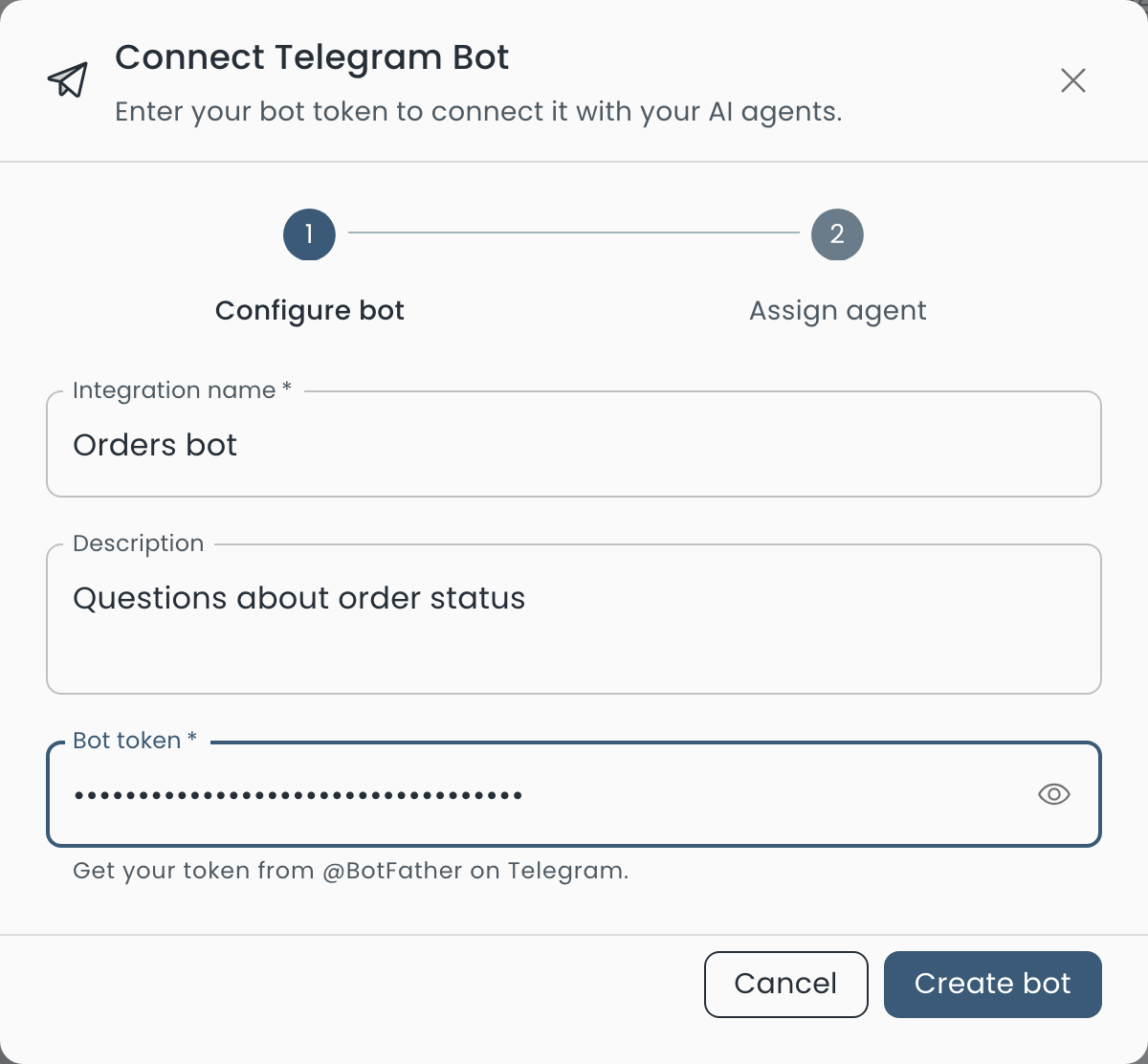
1. Configure bot
| Field | Content |
|---|---|
| Integration name | Required, between 3 and 100 characters. For example, "Support bot" |
| Description | Optional, up to 500 characters |
| Bot token | Required. The one @BotFather gave you |
Click Create bot. The platform checks the token with Telegram and gets the bot ready to receive messages. If the token isn't valid, it shows Could not create bot.
2. Assign agent
Choose the Owner and the AI agent, both required, and click Save and activate.
The bot's card appears in Connectors with its username (@…) and the Connected status. The details show the Bot username, which you can copy to share it.
If you regenerate the token in @BotFather, the safest option is to delete the integration and create it again with the new token.
Start a conversation
In Telegram, a bot can't write first to someone who has never written to it. In ConversationsUser guide, Start Telegram conversation lets you write to an Existing contact or to a Telegram chat ID (the contact can get it by writing to @userinfobot). If the contact hasn't started the bot yet, the platform tells you. A negative ID belongs to a group, and the conversation is created as a group.