Connecting a WhatsApp Business number lets an agent reply to the messages that reach that number and lets the team handle them from ConversationsUser guide. You start in Settings → Connectors, with Add integration → WhatsApp.
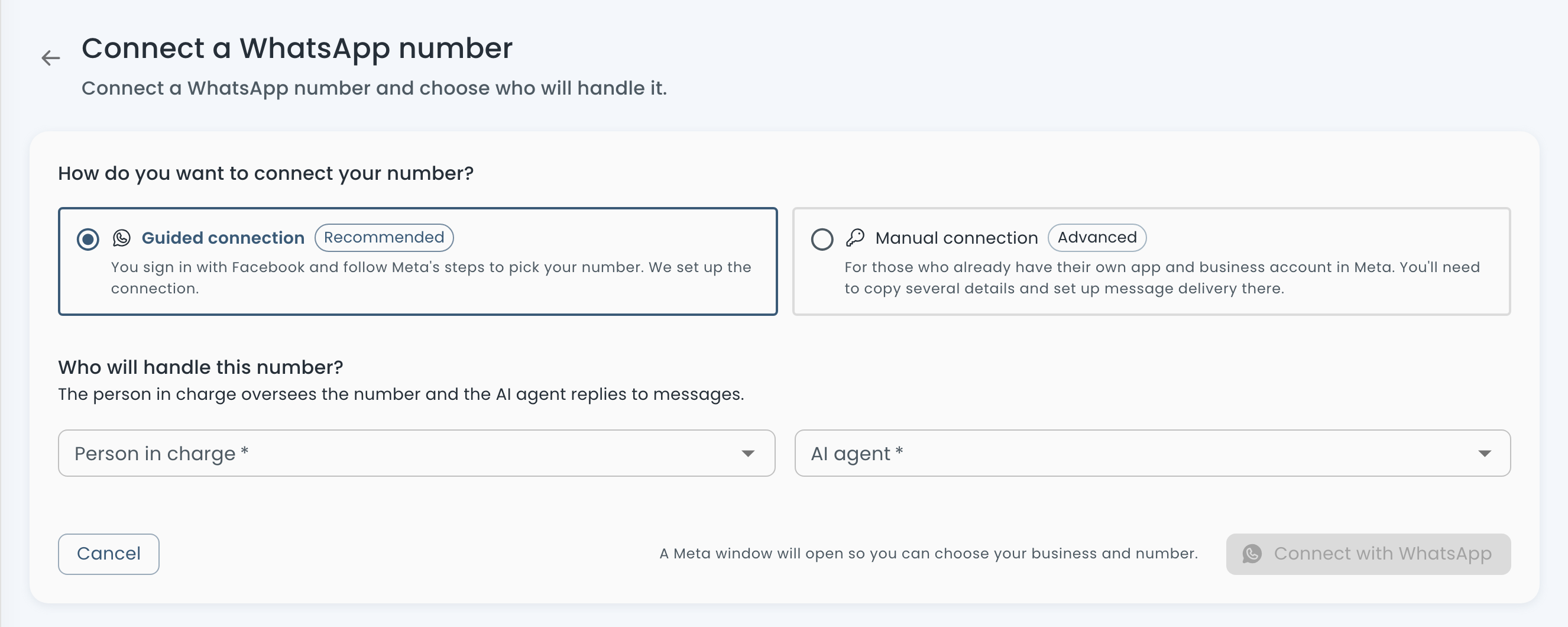
The screen asks for two things: how to connect the number and, in Who will handle this number?, the Person in charge (who supervises the number) and the AI agent (which replies to the messages). Both are required.
Guided connection (recommended)
You sign in with Facebook and follow Meta's steps; ConsulPoint sets up the connection.
- Choose Guided connection, the person in charge and the agent.
- Click Connect with WhatsApp. A Meta window opens.
- In the Meta window, choose the business and the number (or register a new one) and finish the steps.
- When you return, the platform shows Number connected and the number's card appears in Connectors as Connected.
If the number already had a two-step verification PIN (for example, from a previous provider), you're asked for it at the end: enter the 6-digit PIN and click Register number. Until then, the number doesn't send or receive messages. If you don't remember the PIN, you can change or turn it off in WhatsApp Manager and try again; in the meantime, the integration details offer Enter PIN.
Number mode
It's determined by how you finish the connection in the Meta window, and you can see it in the integration details:
| Mode | What it means |
|---|---|
| Coexistence (WhatsApp Business app) | The number is still used from the WhatsApp Business app as well. If someone replies from the app, the AI turns off in that conversation |
| Cloud API | The number only works in ConsulPoint |
In coexistence, WhatsApp can share the conversation history when connecting. The details show its status (Requested, Importing…, Imported, Not shared or Error); the history is only sent once, and to retry you have to connect the number again.
If something goes wrong
| Message | What to do |
|---|---|
| The Meta window was closed before finishing | Click Connect with WhatsApp again |
| The account was shared without a phone number | Repeat, choosing or registering a number |
| This number is already connected | The number is in another account or connected manually; if it's your own manual connection, delete it first |
| The chosen person in charge or agent isn't valid | Choose others: the person must have permission to use the agent |
| Your subscription reached the integrations limit | Upgrade the subscription. See Credits and limits |
| Meta only allows connecting from a secure page | Connect from the published platform, not from a local copy |
When the connection expires
The guided connection's authorization expires after 60 days. Seven days before, administrators receive the Connection about to expire notice, and once it has expired the card shows Expired — reconnect: the number stops working.
To renew it, repeat the Guided connection with the same number: the platform recognizes it as a reconnection and keeps the integration, its assignment and its conversations. Numbers connected manually don't expire.
Manual connection
For those who already have their own app and business account in Meta.
-
Choose Manual connection and fill in:
Field Content Name (optional) If left empty, the number is used Description (optional) Up to 500 characters WhatsApp number Required, with its country code Your WhatsApp Business account ID Required, 10 to 20 digits Your number ID Required, 10 to 20 digits Access key Required. Use a permanent key: the temporary one Meta shows expires shortly You can find the three Meta values at developers.facebook.com: open the app and go to WhatsApp → API Setup.
-
Choose the person in charge and the agent, and click Connect number.
-
The platform shows two values: Callback URL and Verify token. Copy them right then: they aren't shown again.
-
At developers.facebook.com, in the app, go to WhatsApp → Configuration:
- in Webhook, paste the URL and the token and save;
- in the same section, subscribe to the messages field.
-
Click Finish. Once Meta starts sending the messages, the agent will reply to them.
Start a conversation
WhatsApp only lets a business write first with a template approved by Meta. Templates are created and approved in Meta Business Manager; ConsulPoint shows the approved ones for each number.
In ConversationsUser guide, choose WhatsApp and New WhatsApp conversation:
- Choose the WhatsApp connection and enter the Phone number (and, if the contact doesn't exist, their name).
- Choose the Approved template and fill in its variables. The Message preview shows how it will arrive.
- Click Start conversation.
If the connection has no approved templates, you have to create and approve one in Meta Business Manager. See Channels and human supportUser guide.