Folders and files
How to organize the content of the Knowledge Hub: create folders, find files and keep everything in order. To upload files, see Upload documents.
Create a folder
-
Click New folder. The folder is created inside the one that is open, or at the root.
-
Fill in the Create new folder window:
Field Description Folder name Required, between 2 and 60 characters. It cannot be repeated within the same folder Description Optional, between 2 and 255 characters Folder type Standard, Smart Extract or Multimedia. It cannot be changed later Advanced options How the folder's PDFs are converted to text. See below -
Click Create folder.
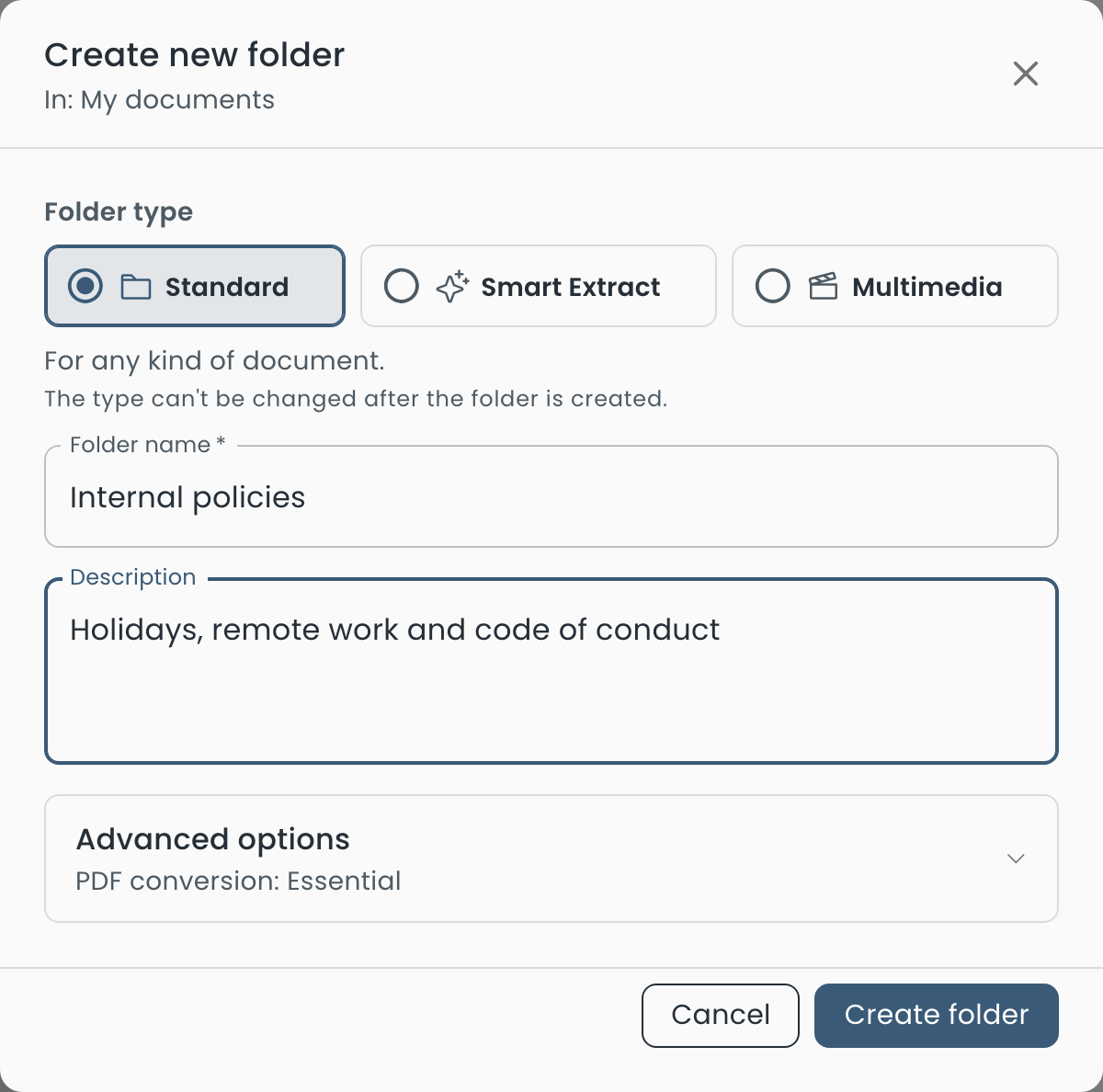
Folders can contain subfolders with no limit on levels. The number of folders and the storage space depend on your subscription.
PDF conversion
In Advanced options you choose how the PDFs in the folder and its subfolders are converted to text before the agents read them:
| Service | When to use it |
|---|---|
| Essential | PDFs with selectable text, such as those created with Word. Keeps text and tables, not images. Free |
| Advanced | Scanned documents, multiple columns or complex tables. It can keep images with a description, so agents understand them too. Uses credits |
In the same section, Image describer lets you choose an agent to describe the images in the PDFs. If you leave it empty, the platform describes them automatically.
A subfolder uses the conversion of the nearest parent folder that has one configured. To change it, edit that folder.
Changing the service doesn't redo the text versions already created: the new one is used for the next ones. In a folder shared with agents, its PDFs are left pending an update. See Update the documents.
In a folder shared with an agent, Edit folder also shows, under Advanced options, the Agents' search row, with the settings in use and the documents pending an update. See Agents' search.
Browse and find content
- Views: grid or list, with the buttons in the top bar. The list shows Name, Owner, Shared with, Last modified and Size.
- Breadcrumbs: below the title, to go back to any parent folder.
- Search: Search files and folders… searches inside the open folder.
- Filters: at the root, by folder type. Inside a folder, by file type (PDF, Document, Spreadsheet, Presentation, Image, Audio, Video, Other) and, in My documents, by Owner.
- Sort by: Date, Name, Size or Type. By default, most recent first.
Actions on content
Each folder and each file has an actions menu. Only the actions the user can perform are shown, depending on their role and their permission on the folder (see Sharing and permissions).
| Action | On | What it does |
|---|---|---|
| Share | Folders | Gives access to people, workspaces or agents |
| Download | Files | Downloads the original file |
| Edit folder | Folders | Changes the name, description and settings |
| Rename | Files | Between 1 and 100 characters, without spaces or the characters / : ; ' " |
| Create text version | Converts the PDF to text. See Upload documents | |
| Move to… | Both | Moves the item to another folder |
| Manage apps | Folders | Assigns up to 7 integrated apps to the folder |
| View details | Folders | Location, dates, extraction settings and who has access |
| Delete | Both | See below |
When you open a file, its preview is shown. Show information tells you, among other things, its Availability for agents (see Agent knowledge).
Move content
In My documents there are three ways:
- Move to… from the item's menu.
- Drag the item and drop it on a folder.
- Select several items and click Move to… in the selection bar.
In Shared with me you cannot move content.
When you move a file to another folder, the agents of the destination folder start reading it and those of the source folder stop.
Delete
A deleted file cannot be recovered: there is no trash. Its extracted data is also deleted and it stops being available to agents.
A folder can only be deleted if it is empty. First move or delete its content.