Sharing and permissions
Folders are shared with people, with workspacesAdministration and with agents. You share folders, not individual files: to give access to a file, share the folder that contains it.
Share a folder
- In the folder's menu, click Share.
- In Add people, workspaces or agents, search for and choose the recipients. They appear grouped under People, Workspaces and Agents, and are collected under To add.
- Choose each recipient's access level.
- Click Save changes. Nothing is applied until then.
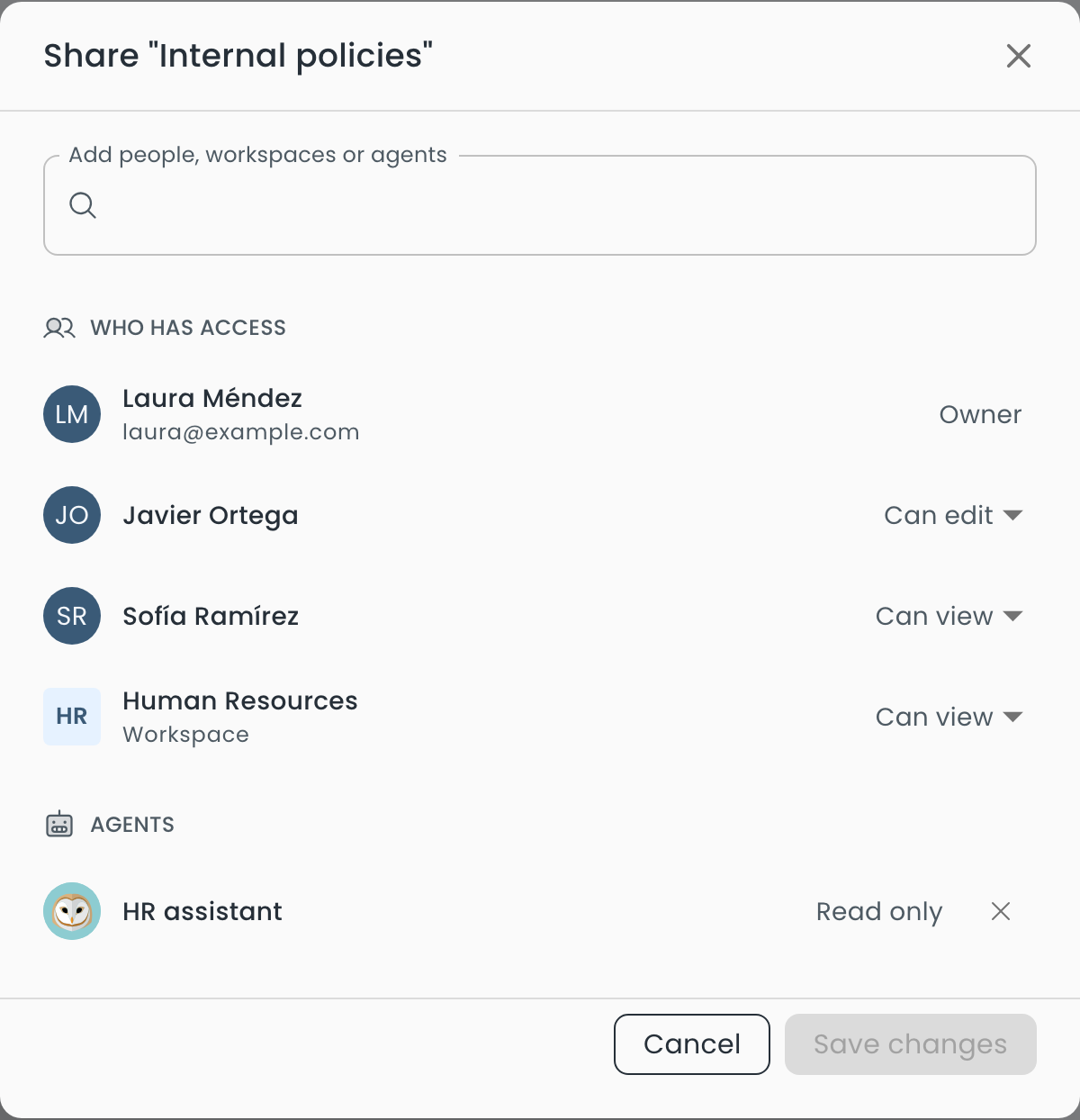
A folder can be shared with up to 10 people and 5 agents. To share with a workspace you must be a member of that workspace.
Access levels
| Level | What it allows |
|---|---|
| Can view | Open and download the content |
| Can edit | Also upload files, create subfolders, rename, move and prepare files for agents |
| Can manage | Also share, delete, manage apps and extract data |
| Read only | The fixed level for agents: they consult the content without changing it |
The folder access level adds to the person's role: to edit, they also need a role with edit permission on Knowledge Hub. See RolesAdministration.
Inheritance
Sharing a folder gives access to everything it contains, including its subfolders and anything added later. In a subfolder's Share window, that access appears as Inherited, with the folder it comes from (From the "…" folder), and it can only be changed from that folder.
Remove access
In the Share window, click Remove access next to the recipient and then Save changes. Until you save, Undo reverts it.
When you remove an agent's access, it stops searching that folder.
Where shared content appears
- Whoever receives a folder finds it in Shared with me.
- Members of a workspace find the folders shared with the workspace when working inside it.
- In My documents, the Shared with column and View details (Who has access) show who each folder is shared with.