Update the documents
When the way a folder's documents are prepared changes, the ones already prepared aren't redone on their own: agents keep reading them as before. That way a change doesn't use credits or leave agents without documents unless someone decides so.
This page explains how to see which documents are pending and how to update them.
What leaves documents pending
| Change | Where it's made |
|---|---|
| Any Document preparation setting: content type, table reading, PDF images, advanced options | Agents' search |
| Changing the folder's settings source or profile | Agents' search |
| Editing the preparation of a profile the folder uses | Search profiles |
| Changing the folder's PDF conversion service or Image describer | Folders and files |
| Redoing or editing a PDF's text version | Upload documents |
Changes to Search results and to the search agent don't leave anything pending: they apply from the next message.
While a document is pending, agents keep reading it with the previous preparation. It doesn't disappear from the answers.
Documents uploaded after the change are already prepared with the new settings.
Review the change
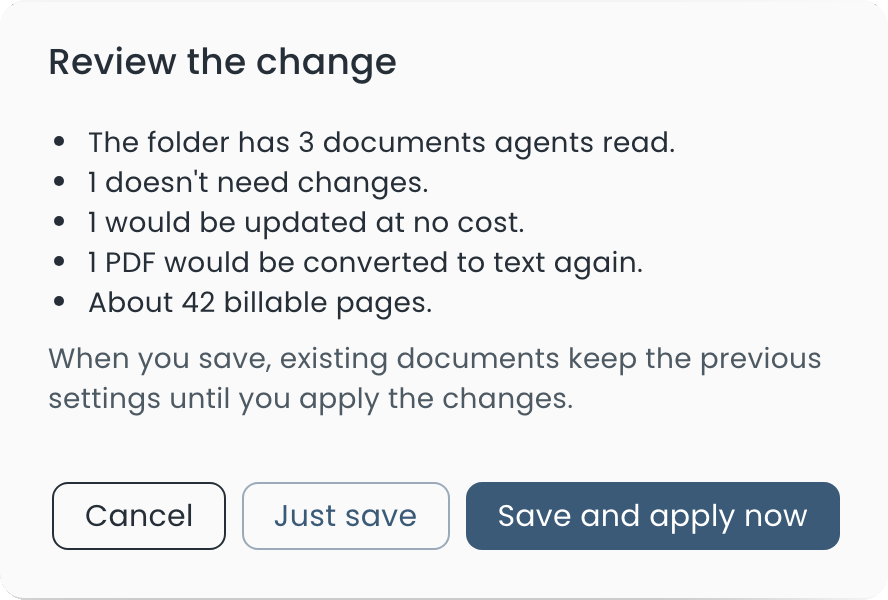
When you save a change that affects preparation, the Review the change window works out which documents it affects:
| Line | Means |
|---|---|
| The folder has … documents agents read. | The total number of documents in the folder and its subfolders |
| … don't need changes. | They're already prepared with the new settings |
| … would be updated at no cost. | They only need to be split into passages again |
| … PDFs would be converted to text again. | Their text version is redone with the new conversion |
| About … billable pages. | The pages of those PDFs converted with the Advanced service, which uses credits. If it can't be calculated: The billable pages can't be estimated. |
| … are already being updated and won't start again. | Documents that were already queued |
With the figures in front of you, you choose:
| Button | What it does |
|---|---|
| Just save | Saves the settings. The documents stay pending until they're updated |
| Save and apply now | Saves and starts updating the documents. It only appears if there's something to update |
| Cancel | Saves nothing |
If your role can't calculate the impact, the window says so and only offers Just save. Calculating the impact and applying require create permission on the Knowledge Hub, the same one you need to upload documents.
Update the pending documents
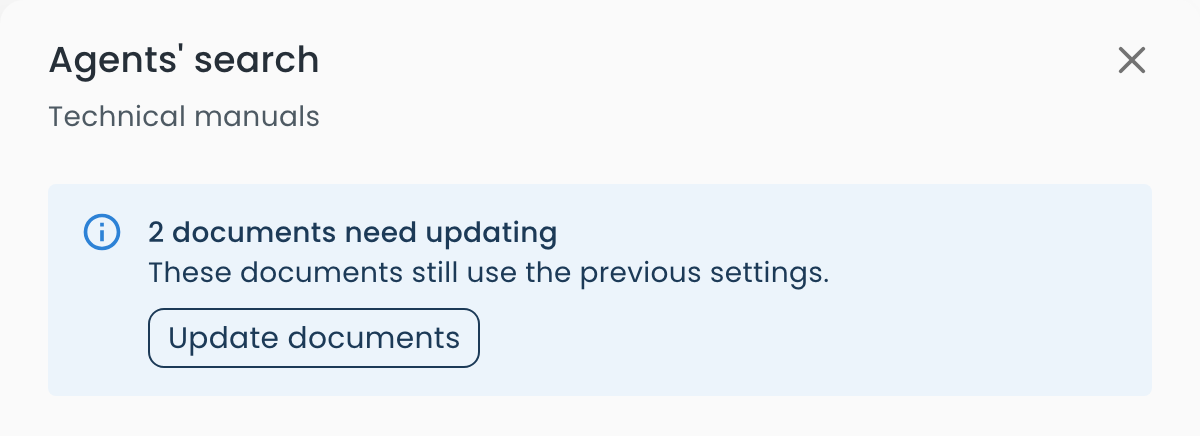
If you chose Just save, or if the documents were left pending for another reason, the Agents' search window shows … documents need updating at the top:
- Click Update documents. If there are unsaved changes, you have to save them first.
- Apply the changes shows the same calculation as Review the change.
- Click Apply now.
The documents are updated in the background, one by one. Meanwhile, agents keep reading the previous version of each document and switch to the new one as each finishes. The platform sends a notification if any of them fails; there's no notice for the ones that finish successfully.
Up to 200 documents are sent for updating each time. If there are more, Update pending appears with the remaining ones, and Continue updating sends the next ones.
If someone changes the settings between reviewing the impact and applying it, the platform doesn't apply anything: The settings changed meanwhile. You have to review the new impact and apply again. That way nobody pays for a change they didn't see.
Credits
| What is updated | Cost |
|---|---|
| Documents that only need to be split into passages again | No cost |
| Documents that aren't PDFs | No cost |
| PDFs with the Essential conversion service | No cost |
| PDFs with the Advanced service | Credits per page. Review the change shows the billable pages |
Without credits, the platform doesn't let you apply: No credits available to update the documents. See Credits and limitsAdministration.
Pending documents in the list
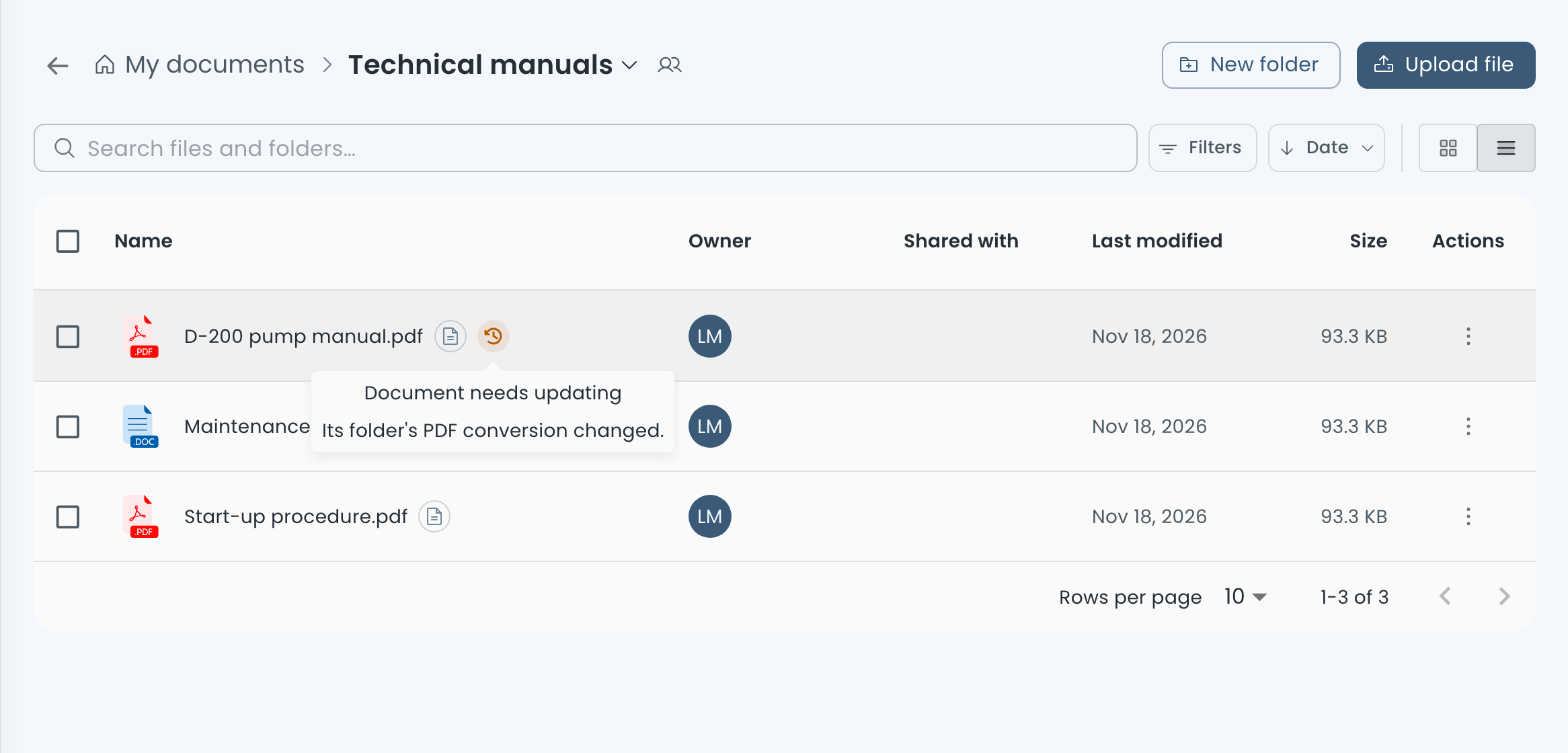
- Folder: an orange mark with arrows next to the name: Documents need updating. If you can edit the folder, click it to open the settings.
- Document: an orange clock next to the name: Document needs updating. Hovering over it shows the reason and what to do.
| Reason | What to do |
|---|---|
| Its folder's settings changed. | Open it and click Prepare again, or update the whole folder |
| Its folder's PDF conversion changed. | Open it, click Redo text version and, when it finishes, Prepare again. Or update the whole folder, which does both steps |
| No reason (its text version changed) | Open it and click Prepare again |
In the document's details
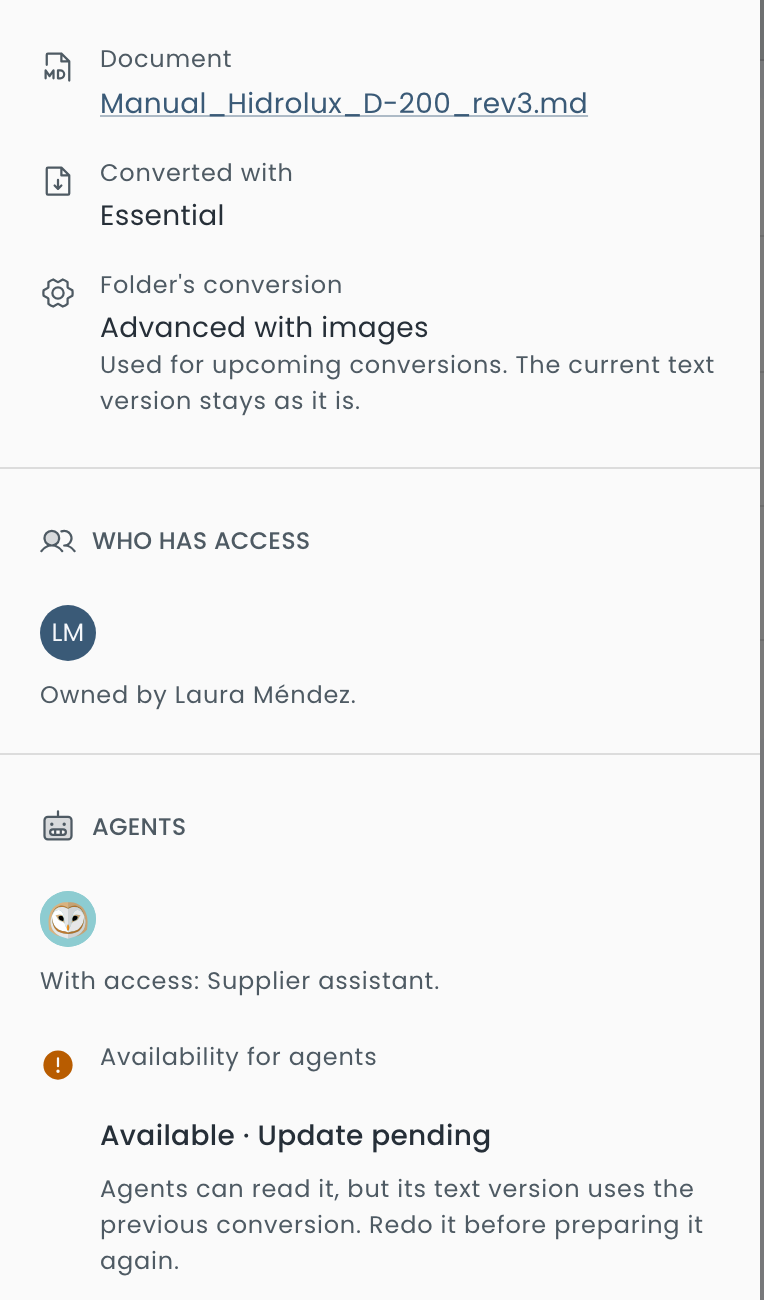
Availability for agents shows the status of each document:
| Status | Means |
|---|---|
| Available | Agents read its current content |
| Available · Update pending | Agents can read it, but with the previous preparation or content. The reason is explained below it |
| Preparing… | It's being prepared |
| Not available yet | Agents can't read it yet |
If the folder's PDF conversion changed, Prepare again isn't enough: the document would keep the previous text version. First you have to Redo text version (the button the details offer) and then Prepare again. Updating the whole folder from Agents' search does both steps on its own.
Best practices
In large folders, the update can take a while. Agents keep answering, but with a mix of updated and pending documents until it finishes.
Before Apply now in folders with many PDFs and the Advanced service, check the billable pages in Review the change.