Email rules
A rule says which emails from an account matter and what to do with them: save their attachments to the Knowledge Hub, analyze them with AI, or both. For example: "emails from invoices@supplier.com with 'invoice' in the subject: save the PDF to the Invoices folder and extract the data".
Rules are managed in Settings → Email rules.
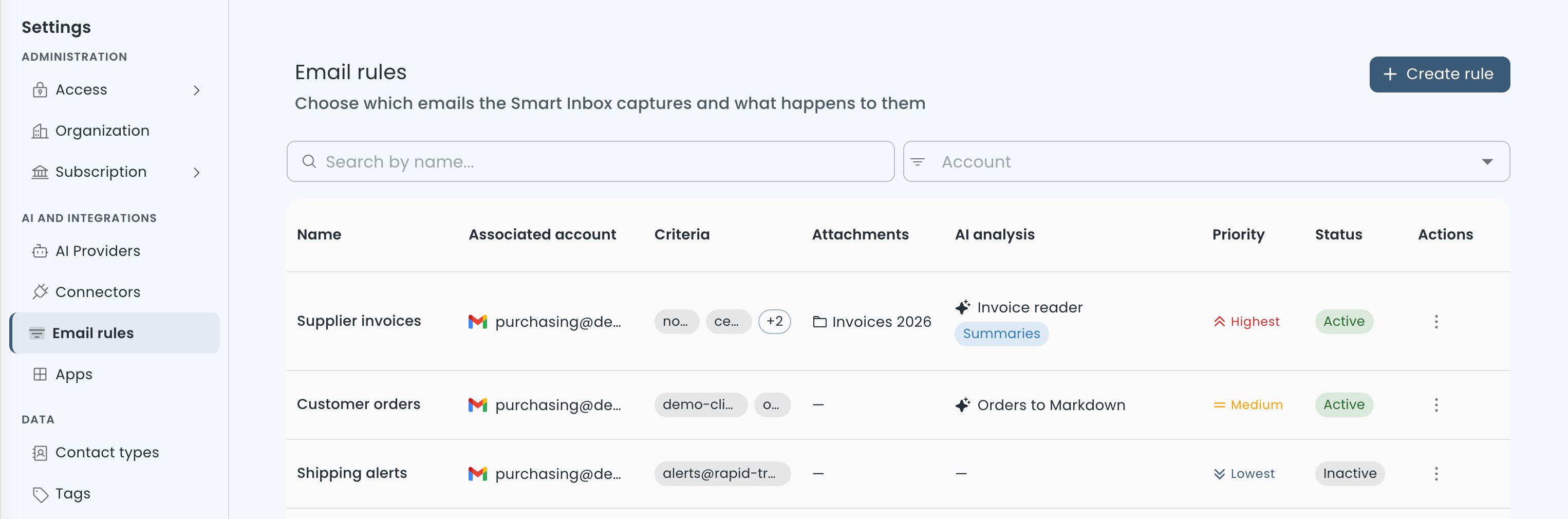
Create a rule
- Click Create rule.
- Fill in the sections (see below).
- Click Save rule.
At the bottom of the form, Rule summary explains in one sentence what the rule will do with the chosen settings.
Name and priority
| Field | Description |
|---|---|
| Rule name | Required, between 3 and 100 characters |
| Priority | Highest, High, Medium (default), Low or Lowest |
| Description (optional) | Up to 500 characters |
If an email matches several rules, the one with the highest priority applies.
Mailbox
| Field | Description |
|---|---|
| Account | Required. The email account the rule reads. It cannot be changed later: for another account, create another rule |
| Capture emails since | Date from which emails are captured. Empty: no date limit |
Criteria
| Criterion | Example |
|---|---|
| Subject keywords | invoice, order |
| Sender emails | invoices@supplier.com |
| Sender domains | supplier.com (includes its subdomains) |
Add each value by pressing Enter or a comma.
- An email is captured if it meets all the criteria you filled in.
- Within a criterion, it is enough for one of the values to match.
- Senders and domains count as a single criterion: it is enough for one of the two to match.
- Matching is not case-sensitive. Keywords match even when they are part of another word.
- With no criteria, the rule captures every email in the mailbox.
What to do with the emails
Save attachments to the Knowledge Hub
| Field | Description |
|---|---|
| Folder for attachments | Required with this option. Your own folder or one shared with you with edit permission |
| File types (optional) | PDF, DOCX, XLSX, CSV, TXT, PNG, JPG. With none selected, all are saved |
Each attachment can be up to 25 MB.
Analyze with AI
When you turn it on, two fields are asked for, in this order:
| Field | Description |
|---|---|
| Results folder | Required. One file per analyzed email is saved here, in monthly subfolders |
| Mail reader | Required. A Mail Reader. It is chosen after the folder, because the folder decides which readers can be used |
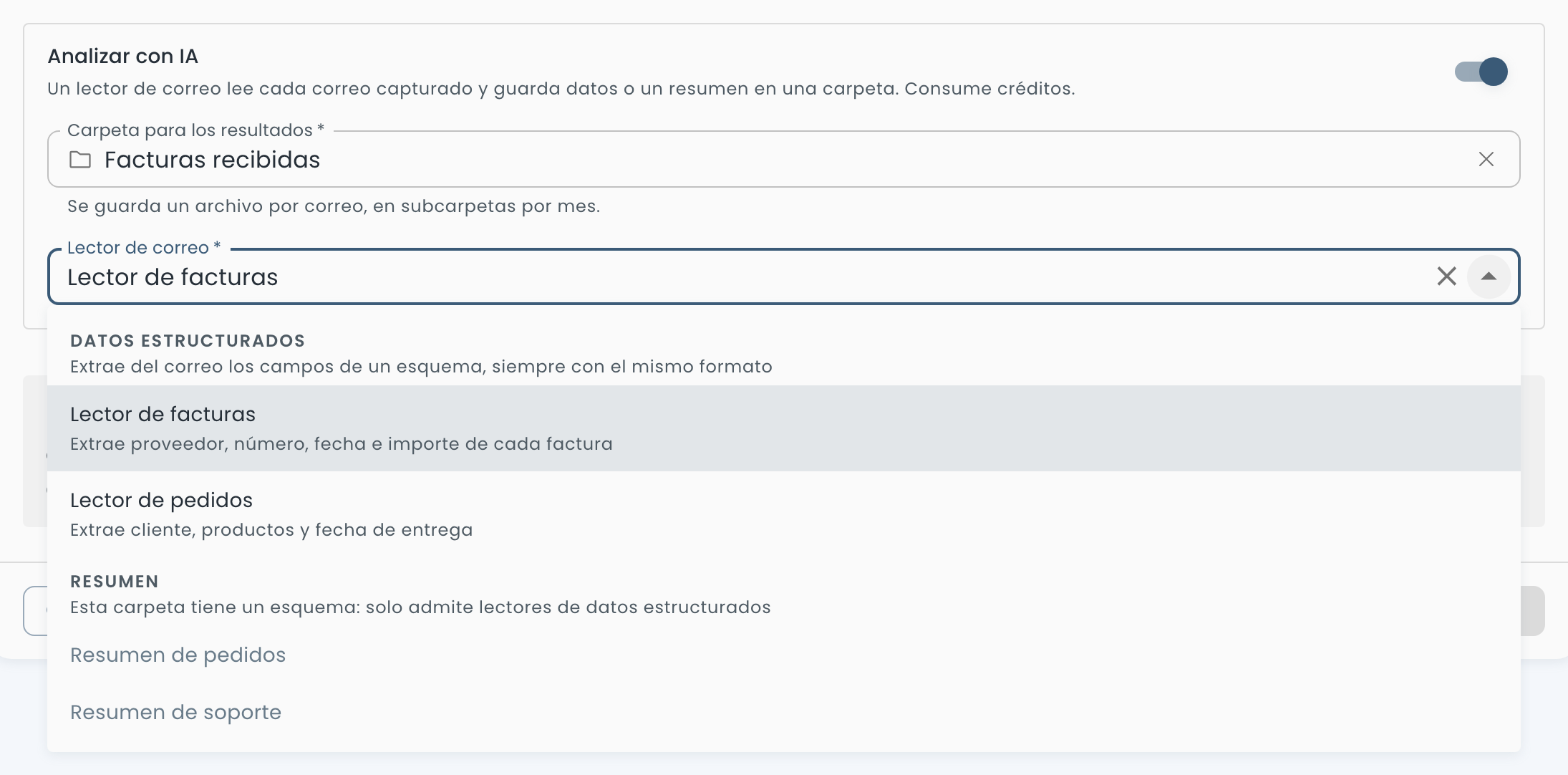
Readers are grouped by their result, Structured data or Summary. The ones that do not fit the folder are shown disabled, with the reason:
| Reason | Why |
|---|---|
| This folder has a schema: it only accepts structured data readers | The folder has a schema assigned |
| This folder already holds summaries / This folder already holds structured data | A folder holds a single kind of result, and another rule already uses it with the other one |
Analysis uses credits. See AI analysis.
It must be a folder you can write to and that is not a Smart Extract folder.
A rule with a Mail Reader and no results folder does not analyze emails. The rule list marks it with No folder, and editing it asks you to choose one.
When you change a rule's folder, if its reader no longer fits the new folder, you have to choose another reader before saving.
Save attachments from existing emails
When you save a rule with attachments, the platform asks Save attachments of existing emails now?:
- Save attachments now goes through all the account's emails that match the rule and saves their attachments. It runs in the background.
- Not now creates the rule without processing anything.
You can repeat this at any time from the rule list, with Process attachments. Attachments the rule has already saved are not duplicated.
Manage rules
The list shows, for each rule, the account, criteria, attachments folder, AI analysis, priority and status. Each rule's menu lets you:
| Action | What it does |
|---|---|
| View details | All the settings and the Manual processing of the AI analysis |
| Edit | Changes the rule, except the account |
| Process attachments | Saves the attachments of the emails that match the rule |
| Deactivate / Activate | A deactivated rule stops capturing and processing emails until it is activated again |
| Delete | Deletes the rule. This cannot be undone |
Best practices
- One rule per type of email: invoices, orders, incidents. Each one with its own folder.
- Specific criteria (sender or domain) rather than loose keywords, which capture more than they should.
- A date in Capture emails since so you don't process years of old email.
- Test the rule with the Smart Inbox rule selector before saving attachments or analyzing in bulk.